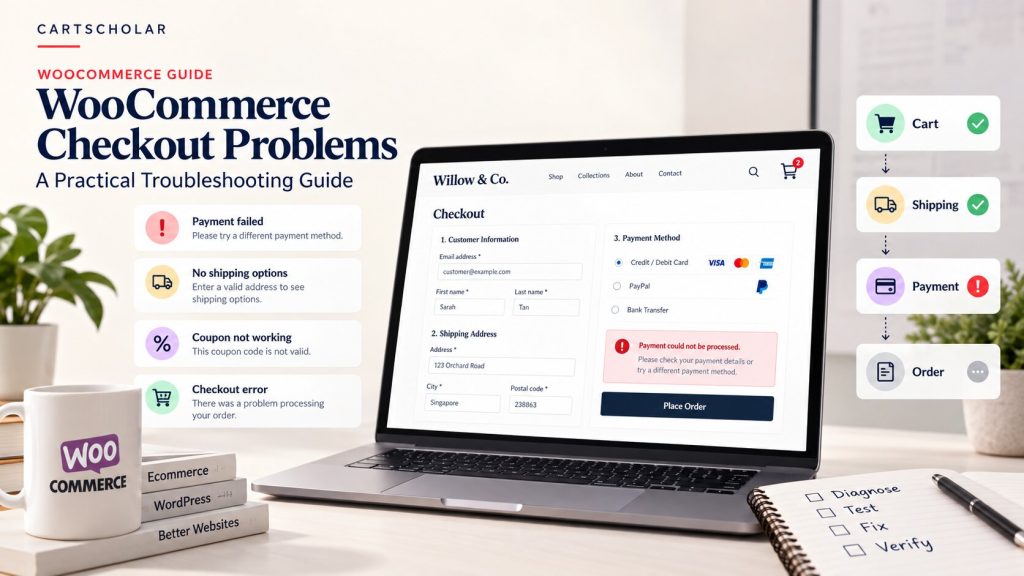
A checkout problem is different from most website problems. By the time a customer reaches checkout, they’ve already chosen a product, decided on a price and started entering their details. They want to buy. Something is simply stopping the order from going through.
That’s what makes WooCommerce checkout problems frustrating to deal with. The customer usually doesn’t tell you what went wrong — they leave. And when someone does report it, the description is often just “checkout isn’t working”, which could mean a dozen different things.
The harder part is that the visible symptom rarely points directly at the cause. A payment that fails might be a gateway setting. It might equally be a plugin interfering with the checkout, a script that didn’t load, a caching rule, or a shipping configuration that leaves the customer with no valid way to complete the order.
This guide works through WooCommerce checkout troubleshooting the way it’s done in practice: understand exactly what’s failing, work out what changed, narrow down the cause, change one thing at a time, and then test the whole purchase journey — not just the part that was broken.
One thing to keep in mind throughout: WooCommerce stores don’t all work the same way. Checkout behaves differently depending on your WooCommerce version, your theme, your plugins, your payment gateway, and whether your store uses the newer Checkout block or the older classic checkout. Where that matters, it’s pointed out below.
1. What a WooCommerce Checkout Problem Actually Means
“Checkout is broken” can describe very different situations. It’s worth being precise, because each points somewhere different:
- The checkout page doesn’t load at all
- The page loads, but fields don’t respond or won’t accept input
- Customers fill everything in but can’t place the order
- The payment fails or is declined
- Shipping options disappear, or show the wrong price
- Tax is calculated incorrectly
- A coupon works in the cart but not at checkout
- The Place Order button does nothing when clicked
- The order appears to fail, but was actually created in the admin
- Customers are redirected somewhere unexpected
- Checkout works on desktop but not on mobile
- One payment method works while another doesn’t
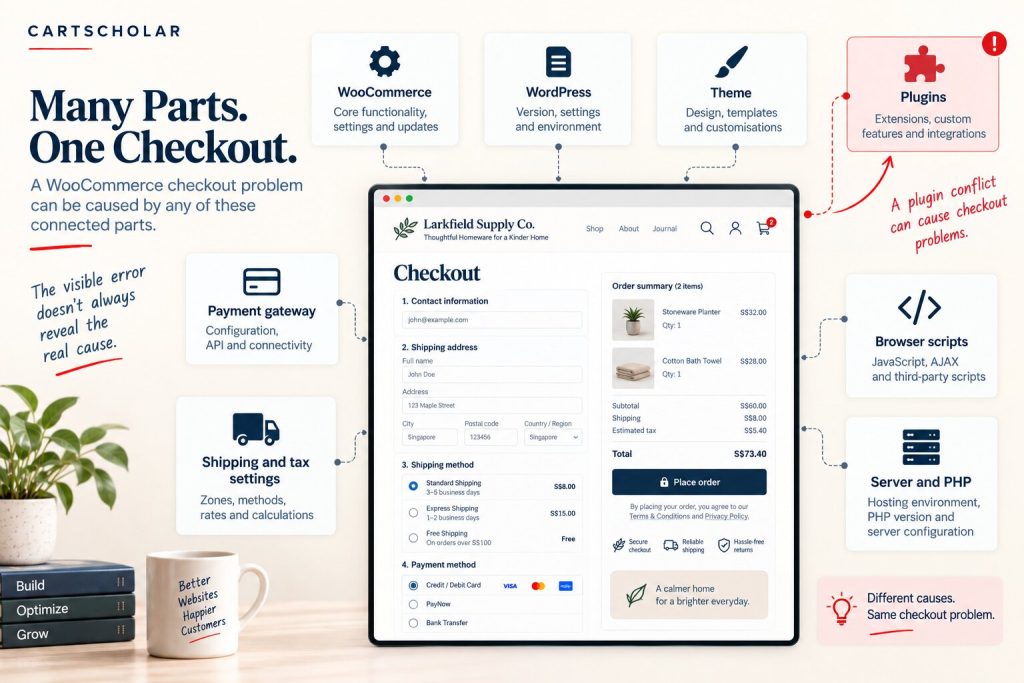
Checkout is one of the most connected parts of a WooCommerce store. A single order passes through WooCommerce itself, WordPress, your theme, several plugins, the payment gateway, your shipping and tax configuration, scripts running in the customer’s browser, background requests that update totals as details change, any custom code, and the server’s PHP environment. Security firewalls and caching systems sit in the path as well.
Any one of those can produce a symptom that looks like a checkout problem. And the component showing the error is often not the component causing it. An error message from the payment gateway, for instance, can be the gateway reacting to something that went wrong earlier in the process.
Resist the urge to start switching things off. Disabling plugins at random or changing settings until the problem goes away feels productive, but it makes diagnosis harder. If three things change and the checkout starts working, you don’t know which change fixed it, whether another one broke something else, or whether the problem will come back. Understand the failure first.
2. Common WooCommerce Checkout Problems
The table below lists the symptoms merchants most often report, alongside the areas worth investigating. These are possible causes, not certain ones — the same symptom can have different causes on different stores.
| Symptom | Areas worth checking |
|---|---|
| Checkout page won’t load | A PHP error from a plugin or theme, a misassigned checkout page in WooCommerce settings, a server problem, or a caching or redirect rule |
| Add to cart works, checkout fails | Session or cookie handling, caching of cart or checkout pages, or a redirect between versions of your domain |
| Place Order button does nothing | A browser script error, a blocked background request, or a plugin conflict — often nothing appears on screen |
| Payment method missing | Gateway disabled or misconfigured, unsupported currency, a country or cart restriction, or incompatibility with the checkout type |
| Payment rejected | The bank or card, gateway settings, test vs live mode, or an authentication step (such as 3D Secure) failing to complete |
| Checkout fields missing | A field editor plugin, theme customisation, custom code, or a plugin not compatible with the Checkout block |
| Shipping methods missing | No shipping zone matches the address, product or class restrictions, or conditions such as minimum order values |
| Wrong shipping or tax | Zone order, shipping classes, tax classes, product tax status, or the address tax is based on |
| Coupon fails at checkout | Usage restrictions that are only checked once the customer’s details are known, or a conflict with a discount plugin |
| Validation errors that won’t clear | Required fields hidden by customisation, address format rules, or a plugin adding its own validation |
| Cart contents change unexpectedly | Stock changes, pricing or discount plugins, currency switching, or cached cart fragments |
| Order not created, or created incorrectly | A failure after payment, the gateway not confirming back to the store, or custom code running during order creation |
| Duplicate orders or payment attempts | Customers clicking repeatedly during a slow response, or a gateway retrying after a timeout |
| Redirected back to checkout | Session problems, blocked cookies, mixed http and https, or www and non-www versions of the site |
| Works on one device, fails on another | Browser-specific script behaviour, extensions, privacy settings, or mobile-only layout problems |
Notice how often the likely areas overlap. A Place Order button that does nothing and a payment method that won’t appear can share the same underlying cause. That’s why it pays to narrow things down before trying to fix anything.
3. Check What Changed Before You Start Fixing Anything
Checkouts rarely break without a reason. Something almost always changed shortly before the problem appeared, and finding that change is often the quickest route to the cause.
Work through the recent history:
- Was WooCommerce updated?
- Was WordPress updated?
- Was the theme updated?
- Was a plugin installed or updated?
- Was the payment gateway changed or reconfigured?
- Were shipping or tax settings changed?
- Was custom code added, or the checkout customised?
- Was a caching or optimisation plugin installed or adjusted?
- Did the hosting or server environment change, including the PHP version?
- Did the problem start after a migration or a domain change?
Automatic updates are worth checking specifically. If plugins update themselves, something can change on your store without anyone deciding to change it. “Nobody touched anything” is often true of the people — not of the software.
Record the problem before you touch anything
Write down exactly what’s happening. It takes a few minutes and saves much more later:
- Which page is affected
- The exact action that fails — adding a coupon, choosing shipping, clicking Place Order
- Any error message, word for word
- The browser and device used
- Whether you were logged in or checking out as a guest
- The payment method selected
- The shipping method and delivery address
- Whether it happens every time, or only sometimes
If you can reproduce it, you can fix it. A problem that happens every time under specific conditions is far easier to troubleshoot than one that “sometimes” happens. Spend time finding the exact steps that trigger the failure — that effort pays back immediately.
4. Payment, Shipping and Tax Problems
A surprising number of checkout problems aren’t technical faults at all. The checkout is doing exactly what it’s configured to do — the configuration just doesn’t match what the store needs. These are also some of the safest areas to review yourself.
Payment problems
Payment gateway issues are among the most common WooCommerce payment problems, and the details vary between gateways. Areas to review:
- Test and live mode. A gateway left in test mode won’t take real payments. One switched to live with test credentials still in place won’t work either.
- Credentials and account status. Keys that have expired, been regenerated, or belong to a different account will cause failures. If you suspect this, check the status in your gateway provider’s dashboard rather than changing credentials in WooCommerce blindly.
- Supported currencies. Many gateways only support certain currencies. If a currency switcher shows prices in an unsupported currency, the payment method may disappear or fail.
- Availability rules. Some payment methods only appear for certain countries, cart values or order types.
- Gateway error messages. Take these seriously and record them exactly — they’re usually more specific than WooCommerce’s general errors.
- Authentication steps. Card payments often require an extra verification step, such as 3D Secure. If a popup or redirect for that step is blocked, the payment can fail even though the card itself is fine.
- Compatibility with your checkout. Not every gateway plugin supports every checkout setup. In particular, some extensions support the classic checkout but not the Checkout block, or have limitations on it.
It’s important to separate two very different situations: a payment that genuinely failed, and a payment that succeeded but the order didn’t update. In the second case the customer has often been charged while the order sits at “Pending payment”, usually because the gateway’s confirmation didn’t reach your store. The fix for each is completely different.
Test payments carefully. Where your gateway offers a test or sandbox mode, use it for troubleshooting. Don’t experiment with live payment credentials or settings on a production store without understanding the effect — and never share API keys or secret credentials in emails, chats or support forums.
Shipping problems
When shipping methods disappear, the customer often can’t complete checkout at all. Common reasons:
- Shipping zones. WooCommerce matches the customer’s address against your zones in order and uses the first zone that matches. A broad zone placed above a more specific one can capture addresses you intended for the other.
- No matching zone. If an address doesn’t fall into any zone with a method assigned, the customer may see no shipping options.
- Shipping classes. Products assigned to a shipping class may be priced differently or excluded from certain methods.
- Conditions. Free shipping with a minimum order amount or a coupon requirement will only appear once that condition is met.
- Local pickup and similar options may be restricted to certain locations.
A quick check is to try the checkout with a different delivery address. If shipping options appear for one address and not another, the issue is almost certainly configuration rather than a fault.
Tax problems
Incorrect tax is usually a settings question:
- Whether tax is calculated from the customer’s shipping address, billing address or your store’s base address
- Whether product prices are entered including or excluding tax
- Each product’s tax status and tax class
- Whether tax rates exist for the customer’s location
Also check whether the tax is calculated wrongly or displayed confusingly. Showing prices including tax in the shop and excluding it at checkout can look like an error when the maths is actually correct.
5. Plugins, Themes and Checkout Conflicts
Checkout is a busy place for plugins. Several different pieces of software can all be working on the same page at the same moment, and conflicts often appear there first.
Common combinations involved in checkout conflicts:
- WooCommerce and another plugin that modifies checkout
- A payment gateway and another plugin
- A shipping plugin and a checkout customisation
- Coupon or discount plugins
- Product options or add-on plugins
- Currency switcher or multilingual plugins
- Caching and optimisation plugins
- Security or firewall plugins
- Theme customisations
- Custom checkout code
A conflict doesn’t mean one of the plugins is badly made. Two well-built plugins can still be incompatible in one particular setup. For a fuller explanation of how conflicts happen and how to work through them, see our guide to WordPress plugin conflicts.
Caching deserves a specific mention. Cart, checkout and account pages generally should not be served from a page cache, because they need to reflect each customer’s own session. Many caching tools exclude these pages automatically for WooCommerce, but custom rules, server-level caching or a CDN can still interfere.
A safer way to isolate a conflict
- Reproduce the problem so you can trigger it on demand.
- Record exactly what happens — what you did, what you saw, any error.
- Work on staging or with a verified backup. A staging copy lets you break things without affecting customers.
- Identify the likely components. Start with anything recently changed, and anything related to the failing feature.
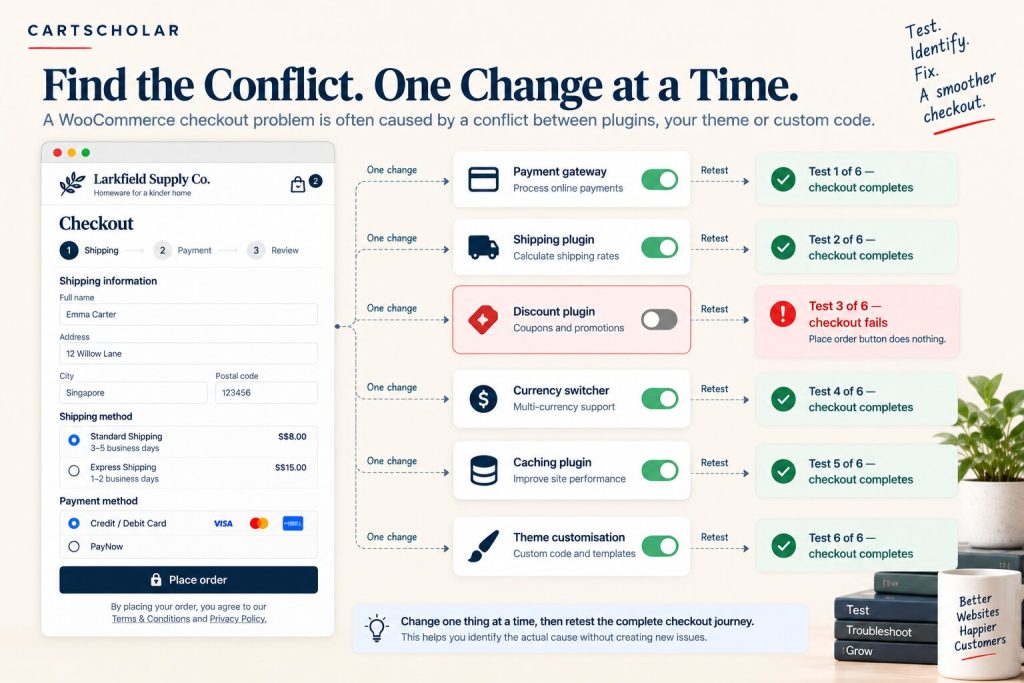
- Change one thing at a time, and test the exact failing action after each change.
- Re-enable components after testing, so you’re not leaving the store in a changed state.
- Verify the full checkout journey once you believe you’ve found the cause.
If you need to test on a live store, the free Health Check & Troubleshooting plugin can disable plugins or switch themes for your logged-in session only, while customers continue to see the normal site. One limitation matters for checkout: because it only affects your own logged-in session, it won’t reproduce problems that only affect guest customers.
Disabling everything at once and turning plugins back on randomly seems faster, but it tends to hide the answer. If the problem only appears when two specific plugins are active together, re-enabling things in the wrong order can make it look like either plugin is at fault — or neither.
6. JavaScript, AJAX and Browser-Related Problems
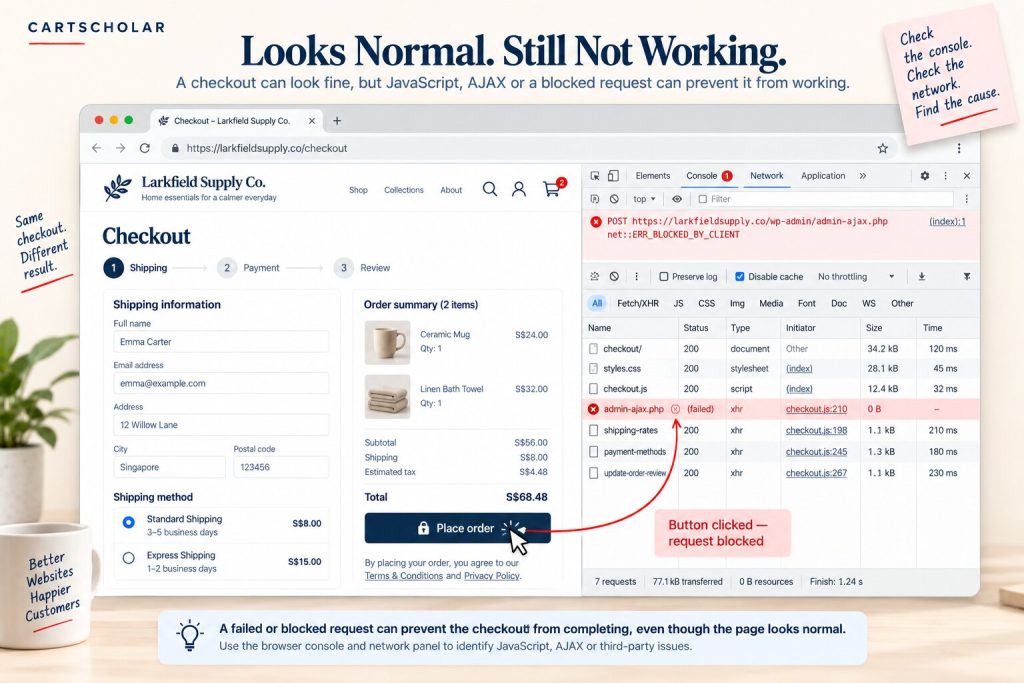
Some of the most confusing WooCommerce checkout issues happen when the page looks completely normal. Every field is there and the button is visible — but nothing happens when the customer clicks it.
That can mean something has gone wrong in the customer’s browser, although the underlying cause may still be a plugin, theme, optimisation setting, security rule, or server-side problem.
What’s happening behind the checkout page
A modern checkout isn’t a static form. JavaScript — code that runs in the browser — handles much of the interaction. When a customer changes their address or shipping method, the checkout sends small background requests to your store and updates totals without reloading the page. These are often called AJAX requests. The classic checkout and the Checkout block handle this differently, but both depend on scripts running correctly in the browser.
If one script hits an error, or a background request is blocked, the checkout can quietly stop responding. Typical signs:
- The Place Order button does nothing
- Shipping totals don’t update after changing the address
- A payment method never appears
- Fields don’t refresh after entering details
- Validation never completes, so the order can’t be submitted
- The order summary keeps reloading repeatedly
- The problem only happens in one browser
Common causes
- Script errors from a plugin or theme that stop other scripts running
- Blocked background requests, sometimes from a security or firewall rule
- Cached scripts or styles that are out of date after an update
- Minification or combining of JavaScript by an optimisation plugin, which can break the order scripts depend on
- Third-party scripts such as chat widgets, tracking tags or review widgets that fail and interfere
Every browser includes developer tools that record script errors and show which background requests failed. You don’t need to understand the details, but a screenshot of any red errors in the console is extremely useful to whoever investigates.
The simplest test you can do yourself is to try the checkout in another browser, and in a private window with extensions disabled. If it works there, the problem is likely specific to a browser, an extension or cached files. If it fails everywhere, it’s more likely to be the store itself.
7. What to Check When Checkout Works for Some Customers but Not Others
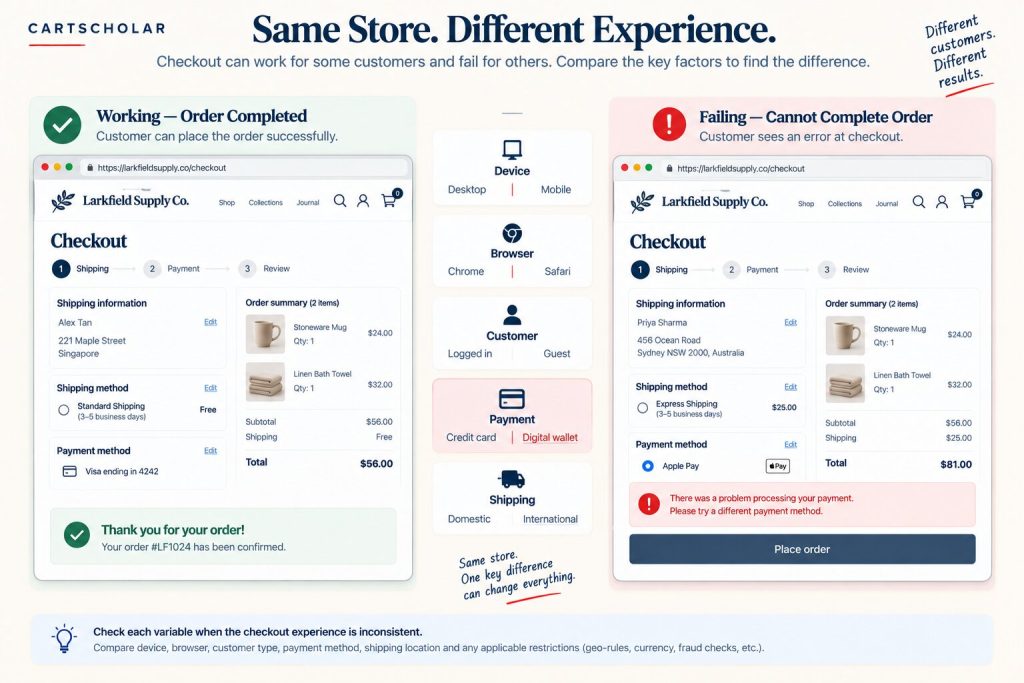
Intermittent problems feel the hardest, but they often give the most useful clues. If checkout works for one customer and fails for another, the difference between those two situations points towards the cause.
Conditions that commonly separate a working checkout from a failing one:
- Desktop versus mobile
- Chrome versus Safari versus Firefox
- Logged-in customer versus guest
- Different countries or delivery addresses
- Different payment methods
- Different currencies
- Different products in the cart
- Different customer accounts
- Higher versus lower cart values
- With a coupon versus without
Compare a working case with a failing case
Find one checkout that works and one that fails, then compare them side by side. Change one condition at a time until the working case starts failing, or the failing case starts working.
| Condition | Working checkout | Failing checkout |
|---|---|---|
| Device | Desktop | Mobile |
| Browser | Chrome | Safari |
| Customer state | Logged in | Guest |
| Cart | 1 item | 3 items |
| Product | Standard product | Product with options |
| Shipping address | Domestic | International |
| Payment method | Card | Wallet payment |
| Coupon | None | Percentage coupon |
| Currency | Store default | Converted currency |
The values above are just an example of the method. In practice, once you find the single condition that flips the result, you’ve usually found the area responsible — and turned an unpredictable problem into a reproducible one.
Coupons are a good example of why this matters. Some coupon restrictions, such as limiting a coupon to particular email addresses, can only be checked once the customer’s billing details are entered. A coupon can therefore appear to apply in the cart and then be rejected at checkout, which looks like a bug but is actually a restriction working as configured.
8. How to Test and Fix WooCommerce Checkout Problems Safely
Here’s a practical WooCommerce checkout troubleshooting guide you can follow in order. It won’t fix every problem on its own, but it will keep you from making the situation harder to diagnose.
- Reproduce the problem. Trigger it yourself so you know exactly what fails.
- Record the exact symptom, including any error message word for word.
- Check recent changes to plugins, themes, settings, code and hosting.
- Confirm whether it happens consistently, or only under certain conditions.
- Test on another browser and device to see whether it’s store-wide or environment-specific.
- Check the logs. WooCommerce records errors under WooCommerce → Status → Logs, and many payment gateways can write their own debug logs. Fatal errors are often recorded there too.
- Review payment, shipping and tax configuration before assuming a technical fault.
- Test likely plugin and theme conflicts, one change at a time.
- Test browser behaviour, including caching and optimisation settings.
- Apply the smallest appropriate fix. Change only what the evidence points to.
- Retest the complete checkout journey, not just the step that was broken.
Protect the store while you work
- Use a staging environment where possible, so testing never affects real customers.
- Take a verified backup before changing anything — one you know can be restored.
- Test in a controlled way, with the same product, address and payment method each time.
- Change one thing at a time, so you know what each change actually did.
- Document what you change, so it can be reversed and explained later.
Avoid these, even under pressure: deleting plugins at random rather than deactivating them; changing live payment settings without understanding the impact; editing database values without a backup and a clear reason; making several changes at once; and assuming the first error you see is the root cause. Each one can turn a fixable checkout problem into a bigger one.
It’s also worth knowing when to stop and get help. If the logs show fatal errors you can’t interpret, if payments are being taken without orders being created, or if the store is losing orders while you troubleshoot, involving an experienced WooCommerce developer is usually the faster and safer route.
9. A Practical WooCommerce Checkout Troubleshooting Process
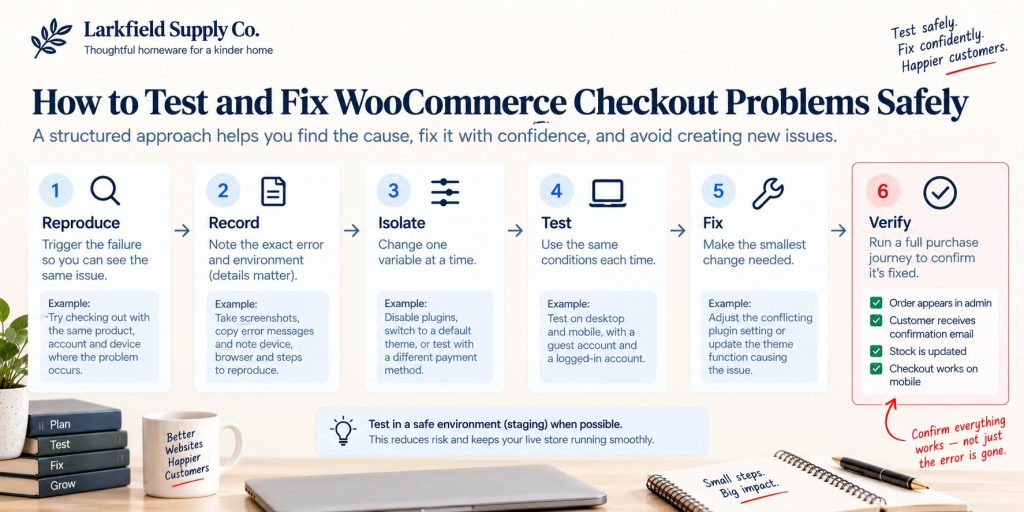
When checkout breaks again — on this store or another — the same process applies:
Reproduce → Record → Isolate → Test → Fix → Verify
- Reproduce — trigger the problem reliably so you know exactly what fails.
- Record — capture the symptom, error, device, customer state and payment method.
- Isolate — narrow the cause down to configuration, a plugin, the theme, the browser or custom code.
- Test — change one thing at a time under the same conditions.
- Fix — make the smallest change that addresses the actual cause.
- Verify — confirm the whole purchase journey works, not only the broken step.
A fix isn’t finished when the error disappears
Checkout changes often have side effects, so test the full journey afterwards:
- Product page
- Add to cart
- Cart
- Coupon
- Shipping options and cost
- Tax
- Checkout fields
- Payment method
- Place Order
- Order confirmation page
- The order in WooCommerce admin, with the correct status
- The customer confirmation email
- Stock levels updated correctly
- Checkout on mobile
- Each payment method you offer
- Each shipping method you offer
Test as a guest as well as while logged in, since many checkout problems only affect one or the other. For a broader set of checks across the rest of your store, our website testing checklist before launch covers the same principles in more depth.
The goal is not simply to make the checkout error disappear. The goal is to identify the underlying cause, make the smallest appropriate change, and verify that the complete purchase journey still works.
WooCommerce checkout problems are difficult because checkout sits at the intersection of so many parts of an ecommerce website. A problem that looks like a payment issue may actually involve a plugin, the theme, JavaScript, shipping configuration, browser behaviour or custom code.
That’s why a structured method works better than trying random fixes. Reproduce the issue, record what you know, isolate the variables, test one change at a time, fix the underlying problem, and then verify the complete customer journey.
The goal isn’t just to make the error go away. It’s to make sure customers can complete their purchase — and that the rest of the store keeps working properly afterwards.
Need help troubleshooting your WooCommerce store?
WooCommerce checkout problems can involve multiple plugins, payment gateways, theme customisations and store configurations. CartScholar can investigate the issue, isolate the underlying cause, implement the appropriate fix and test the complete customer journey.