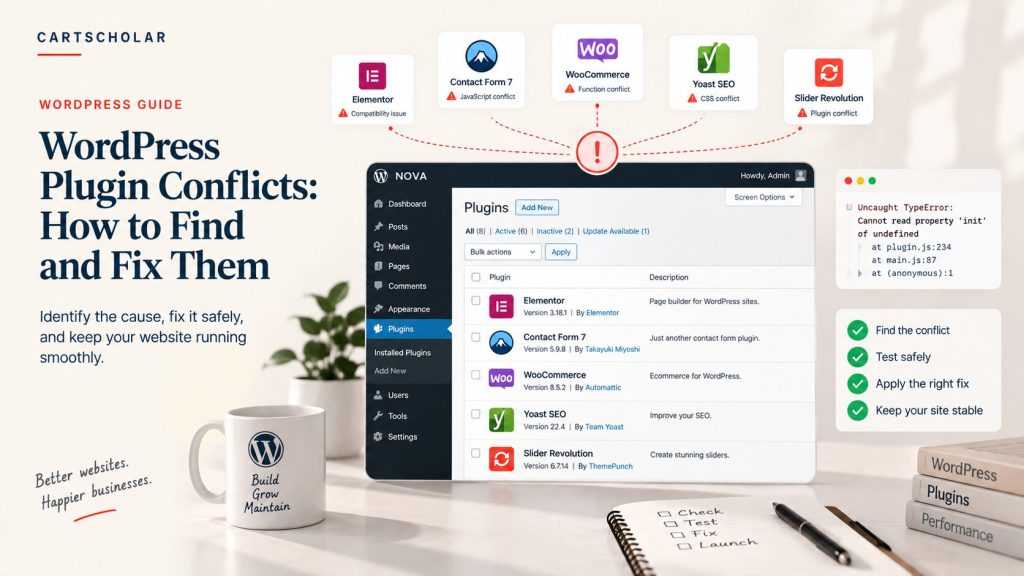
Plugins are one of the main reasons WordPress works so well for businesses. You need a booking form, a payment gateway, a review system — and you can have it running in an afternoon instead of paying someone to build it from scratch.
The trade-off is that plugins are written by different people, at different times, without knowing what else is installed on your site. Most of the time that’s fine. Occasionally two plugins reach for the same thing at the same moment, and something breaks.
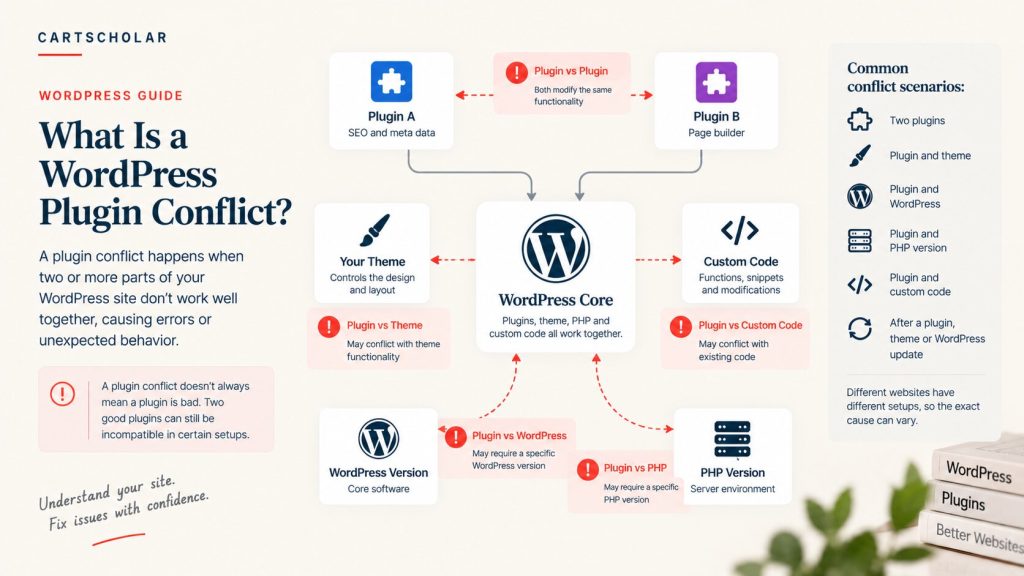
A conflict can happen between:
- Two plugins
- A plugin and the active theme
- A plugin and WordPress itself
- A plugin and the PHP version your hosting runs
- A plugin and custom code added to the site
It’s worth saying early: a plugin conflict doesn’t mean the plugin is bad. Two well-built, well-maintained plugins can still be incompatible on one particular site because of the combination around them — the theme, the other plugins, the hosting, the customizations. The same two plugins may run together happily on a thousand other sites.
Which leads to the single most useful habit when something breaks. Before changing or deleting anything, work out two things: what actually broke, and what changed just before it broke.
1. What Is a WordPress Plugin Conflict?
In practical terms, a conflict is what happens when two pieces of software both try to control the same part of your website and disagree about the outcome.
That plays out in a few recognisable ways:
- Two plugins modifying the same functionality. Two plugins both altering your checkout, your forms, or your image handling. Each works correctly on its own; together, one overwrites the other’s work.
- Plugin versus theme. Themes contain code too, and a theme that styles or modifies the same area a plugin touches can produce the same standoff.
- Plugin versus WordPress version. WordPress changes over time. A plugin written against an older version may rely on something that has since changed.
- Plugin versus PHP. PHP is the language WordPress runs on, and your hosting decides which version. A plugin built for an older version can fail on a newer one, and vice versa.
- Plugin versus custom code. Snippets added to a theme or a functions file are code like any other, and can collide with a plugin just as easily.
- An update changing behaviour. Nothing new was installed, but a plugin you already had now does something slightly differently — and something else depended on the old behaviour.
The reason this can be frustrating to diagnose is that a WordPress site has a lot of moving parts. A typical business site might run twenty plugins, a commercial theme, a page builder and a handful of custom snippets, all loading together on every page. When something breaks, several of those are plausible suspects, and the symptom rarely points at the culprit.
2. What Does a Plugin Conflict Look Like?
Conflicts show up in a wide range of ways, and the symptom is not always close to the cause.
- A blank or partially broken page
- The WordPress admin becoming inaccessible
- Forms no longer submitting
- Buttons that do nothing when clicked
- The layout suddenly changing
- Display problems that only appear on mobile
- Checkout failing or behaving strangely
- Images or sliders disappearing
- Visible error messages
- Unexpected redirects
- Pages becoming slow or unstable
- A feature working on one page but not another
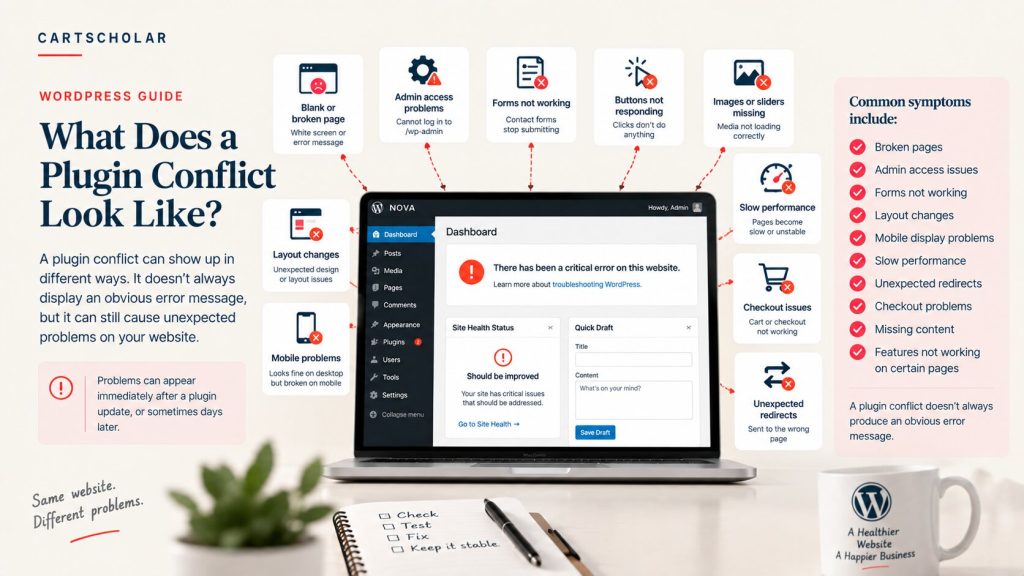
Timing adds to the confusion. Problems often appear immediately after an update, which at least gives you a starting point. But they can also sit unnoticed for weeks — because the broken feature is on a page nobody visits daily, or only affects logged-out visitors, or only shows up on a phone.
A plugin conflict does not always produce an obvious error message. Quite often the page loads normally and one thing simply stops working.
That’s worth keeping in mind, because the silent failures are the expensive ones. A contact form that stops sending or a checkout step that quietly fails will cost you real enquiries and orders before anyone notices.
3. Check What Changed Before You Start Fixing
The instinct when something breaks is to start disabling things. It’s usually better to spend five minutes on a different question first: what changed?
Websites rarely break on their own. Something almost always happened just beforehand:
- Was a plugin recently updated?
- Was a new plugin installed?
- Was WordPress updated?
- Was the theme updated?
- Was custom code added or edited?
- Did the hosting environment or PHP version change?
- Did the problem start after a website migration?
The fastest way to find a problem is often to look at what changed immediately before it appeared.
Automatic updates make this easy to miss. If plugin updates are applied automatically, something can change on your site without anyone deciding to change it. The update history in your WordPress dashboard is worth checking even when you’re certain nobody touched anything.
Before you start making changes, write down what you’re actually dealing with. It takes a minute and saves considerably more later:
- Which page or pages are affected?
- What action triggers the problem?
- Does it happen every time, or only sometimes?
- Does it happen on both desktop and mobile?
- Does it happen when logged in, logged out, or both?
- Is the whole site affected, or one specific feature?
That last question matters more than it looks. A site-wide failure and a single broken button point in very different directions, and knowing which one you have narrows the search immediately.
4. How to Test for a Plugin Conflict
Finding a conflict is a process of isolation — steadily reducing the number of things that could be responsible until only one remains. It isn’t complicated, but it does need to be done methodically, and it’s the part people most often rush.
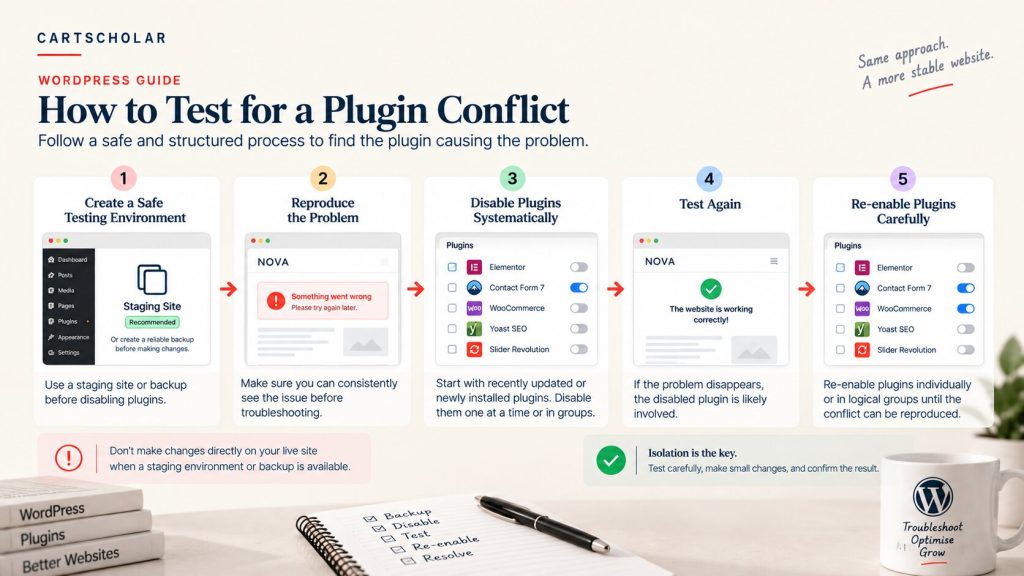
Step 1 — Create a safe testing environment
Before disabling anything, set up somewhere safe to work. A staging site — a copy of your website that visitors never see — is ideal, because you can break things freely without consequence. If staging isn’t available, take a full, verified backup you know how to restore.
Disabling plugins on a live site means real customers may hit a half-working store while you experiment. Sometimes there’s no alternative, but it should be the fallback rather than the starting point.
Step 2 — Reproduce the problem
Make sure you can trigger the issue on demand before you begin. If you can’t reliably reproduce it, you won’t be able to tell whether a change fixed it or you simply got a different result by chance.
This is also where intermittent problems reveal themselves. A form that fails only when a particular field is filled in, or only for logged-out visitors, is telling you something useful about the cause.
Step 3 — Disable plugins systematically
Don’t disable everything at once and turn things back on at random. Start with the most likely candidates:
- Plugins updated shortly before the problem appeared
- Plugins installed shortly before the problem appeared
- Plugins related to the broken functionality — a forms plugin when forms stopped working, a caching plugin when pages display oddly
Working through likely suspects first usually finds the answer faster than a blanket approach, and it keeps the rest of the site running while you test.
Step 4 — Test again
After each change, repeat the exact action that triggered the problem. If it disappears, the plugin you just disabled becomes a strong candidate — though not yet a confirmed cause, since the real issue may be the combination of that plugin with something else.
Step 5 — Re-enable plugins carefully
Turn plugins back on one at a time, or in small logical groups, testing after each step until the problem reappears. The point at which it returns tells you what’s actually involved.
This is the step that identifies genuine conflicts rather than single faulty plugins. If the problem only appears when two specific plugins are both active, neither is broken on its own — and disabling either one would have “fixed” it while leaving you with the wrong conclusion.
Two things to avoid: don’t delete plugins as a first response — deactivating is reversible, deleting often isn’t, and you may lose settings and data. And don’t experiment directly on a live production site when a staging copy or a tested backup is available.
5. Don’t Forget the Theme, WordPress and PHP
It’s natural to assume a plugin problem is plugin versus plugin. Often it isn’t. The conflict may sit between a plugin and something else entirely:
- Plugin and theme
- Plugin and WordPress
- Plugin and PHP
- Plugin and custom code
Common contributors:
- An outdated theme that hasn’t been updated in a long time, particularly one no longer maintained by its author
- An outdated WordPress installation running alongside plugins built for a newer version
- PHP compatibility — hosting providers update PHP periodically, and older plugins don’t always survive the jump
- Deprecated functions, where a plugin relies on something WordPress or PHP has since retired
- Custom theme modifications made months or years ago and since forgotten
- Page builders, which are substantial pieces of software in their own right and interact with a great deal of the site
- WooCommerce compatibility, where checkout, cart and product functionality involve several plugins at once
This is why a plugin can work perfectly on one website and fail on another. The plugin hasn’t changed; everything around it has. The theme is different, the PHP version is different, the other twenty plugins are different.
It also means compatibility can’t really be promised in the abstract. A plugin that is broadly well-behaved may still conflict with your specific setup, and the only way to know is to test it in that setup.
6. JavaScript and CSS Conflicts Can Be Harder to Spot
Some conflicts announce themselves with an error message. Others don’t, because they never involve PHP at all — they happen in the visitor’s browser.
JavaScript is the code that makes things on a page interactive. When two plugins load scripts that interfere with each other, or one script hits an error, everything after it in the sequence can quietly stop running. The page still loads and looks fine. It just doesn’t respond.
- A button doesn’t do anything when clicked
- A menu doesn’t open
- A popup never appears
- Filtering or live search stops updating
- A form doesn’t submit
- A slider or gallery stops moving
CSS conflicts work similarly but affect appearance rather than behaviour. Two plugins, or a plugin and a theme, both style the same elements, and whichever loads last wins:
- Incorrect spacing
- Elements hidden that should be visible
- Broken or shifted layouts
- The wrong fonts appearing
- Overlapping content
- Display problems on mobile only
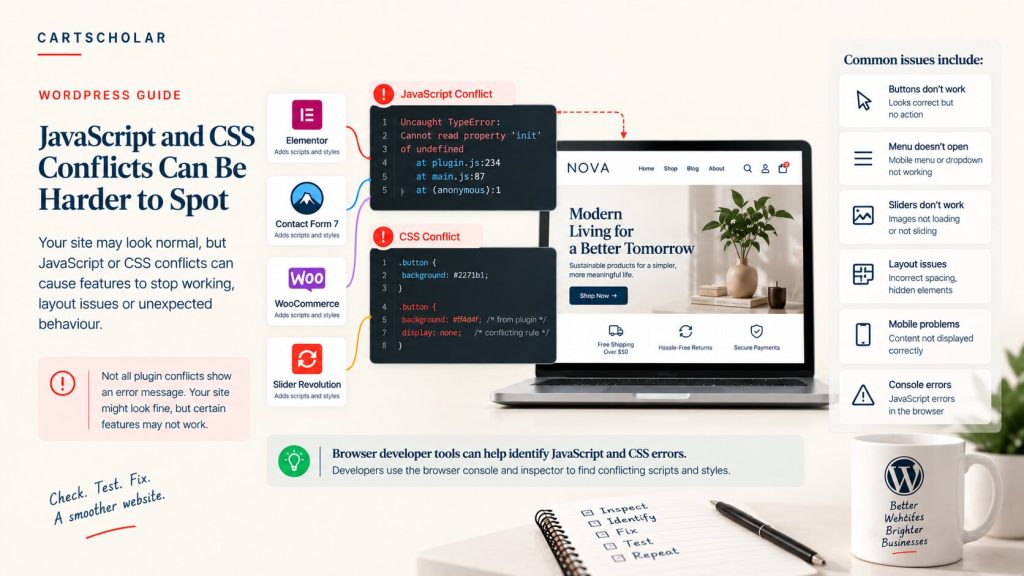
You don’t need to diagnose these yourself, but it helps to know they exist — because “the page looks fine but the button doesn’t work” is a genuine clue, not a vague complaint. It points away from PHP and towards the browser.
Every modern browser includes developer tools that report JavaScript errors and show which styles are being applied. A developer will usually go there first for this category of problem, and the errors listed there often name the file or plugin responsible.
7. What If You Can’t Access WordPress Admin?
This is the situation that turns an annoyance into an emergency. A plugin updates, something fails badly enough to stop the site loading, and now /wp-admin won’t open either — so the obvious fix, deactivating the plugin, isn’t available.
It feels worse than it usually is. There are several recovery routes, and you don’t need all of them:
- WordPress Recovery Mode. When WordPress detects a fatal error, it emails the site administrator address with a special link that gets you into the dashboard with the problem plugin paused. Check that inbox first — including spam.
- Your hosting control panel. Many hosts provide WordPress management tools that can deactivate plugins without dashboard access.
- File Manager. Most hosting panels include one, which lets you reach your site’s files through the browser.
- FTP or SFTP. The same access, through a desktop client.
- A reliable backup. If you have a recent verified backup from before the problem, restoring is often faster than diagnosing.
- A staging environment. If one exists, you can work out the cause there without touching the live site.
Don’t start deleting random plugin files from the server.
That’s the mistake worth avoiding. Removing files at random can turn a single broken feature into a site that won’t load at all, and it can leave behind settings and database entries with nothing to read them. The same applies to editing the database directly — if you aren’t confident exactly what a change does, it isn’t the place to experiment.
The order that works: identify what changed, get access back through the least destructive route available, then deactivate the specific plugin involved. Restore from backup if that’s cleaner.
And if admin access is gone and the cause isn’t clear, this is a reasonable point to involve your hosting support or an experienced WordPress developer. Hosting support can often see server error logs you can’t, which frequently name the exact file causing the failure.
8. How to Prevent Plugin Conflicts in the Future
Conflicts can’t be eliminated entirely — any site combining software from multiple authors carries some risk. But most of the painful ones are preventable.
- Keep WordPress, plugins and themes updated. Updates occasionally cause problems, but running old versions causes more, and outdated software is also a security concern.
- Remove plugins you no longer need. Deactivated plugins still remain on your server, so they still need to be kept up to date or removed if they are no longer needed.
- Avoid running two plugins that do the same job. Two caching plugins, two SEO plugins or two form plugins are a common source of conflict, since both are trying to control the same thing.
- Test major updates on staging first. Particularly for ecommerce sites, page builders and anything touching checkout.
- Keep reliable backups — and confirm they actually restore. An untested backup is an assumption.
- Check compatibility before installing, including when the plugin was last updated and whether it states support for your WordPress version.
- Avoid unnecessary custom modifications, and when they are necessary, keep them minimal and contained.
- Document important customizations. A short note about what was changed and why will save whoever investigates the next problem — quite possibly you, a year from now.
- Check the site after major updates. Load the key pages, submit a form, run through checkout if you have one.
One thing worth pushing back on: the advice that fewer plugins is always better. It isn’t that simple. A well-maintained plugin doing a job you need is not a liability, and replacing five good plugins with custom code creates a different maintenance burden rather than removing one.
Use the plugins you actually need, and understand what each one is responsible for.
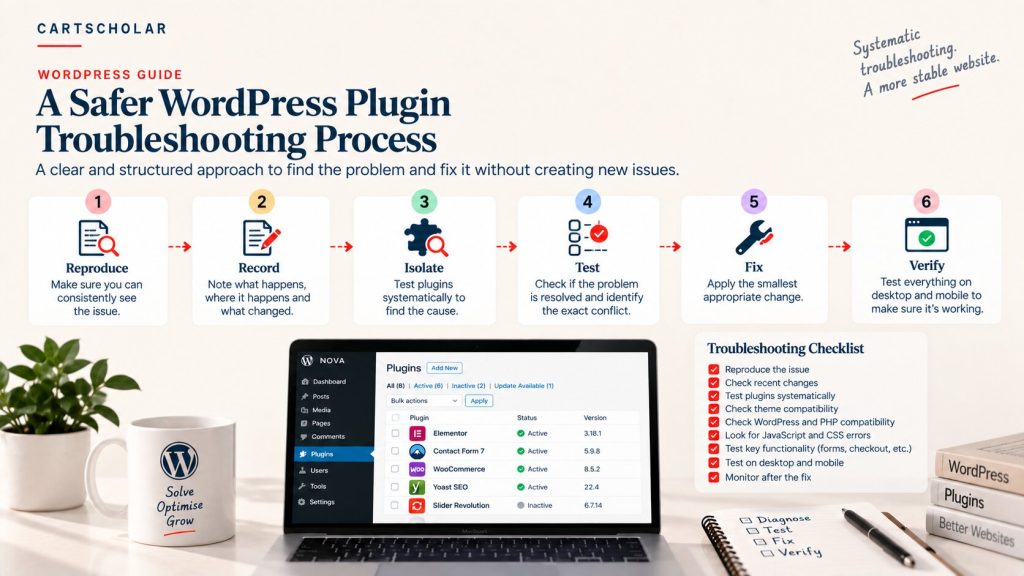
9. A Safer WordPress Plugin Troubleshooting Process
Pulling it together, the process that works is the same each time:
Reproduce → Record → Isolate → Test → Fix → Verify
In practice:
- Reproduce the issue reliably
- Identify exactly which feature is affected
- Check what changed recently
- Create a backup or staging copy before making changes
- Test suspected plugins, starting with the most likely
- Check theme compatibility
- Check WordPress and PHP compatibility
- Check for JavaScript and CSS errors
- Apply the smallest fix that actually resolves the cause
- Test on both desktop and mobile
- Test important forms and confirm the emails arrive
- Test ecommerce flows where relevant — cart, checkout, payment, confirmation
- Keep an eye on the site for a few days afterwards
The last few points matter as much as the diagnosis. A fix that resolves the visible symptom but disables something else has moved the problem rather than solved it, and the replacement problem is usually discovered later and by a customer.
It’s also worth being realistic: the cause depends entirely on the individual setup. The same symptom on two WordPress sites can have completely different explanations, which is why a process beats a list of known fixes.
Plugin conflicts are difficult mainly because WordPress sites are made of many interconnected parts, and a problem that presents as a plugin issue may actually involve the theme, WordPress itself, the PHP version, custom code, JavaScript, CSS, or another plugin entirely. The symptom rarely names the cause.
Which is why the method is worth more than any individual fix. Reproduce it, record what you know, isolate the variables, test one change at a time, then verify the site still works properly — not just the part that was broken.
The goal isn’t simply to make the error disappear. It’s to identify the underlying cause, make the smallest appropriate change, and then verify that the rest of the website still works.
Need help troubleshooting your WordPress website?
Plugin conflicts can be difficult to diagnose when several plugins, custom code and theme modifications are involved. CartScholar can investigate the issue, isolate the underlying conflict and test the affected website functionality before recommending a fix.