A Shopify store can look completely fine and still feel slow to the people using it. The design loads, the products are there, nothing is visibly broken — but there is a pause before anything useful appears, images arrive late, and tapping a button on a phone feels like it takes a moment too long.
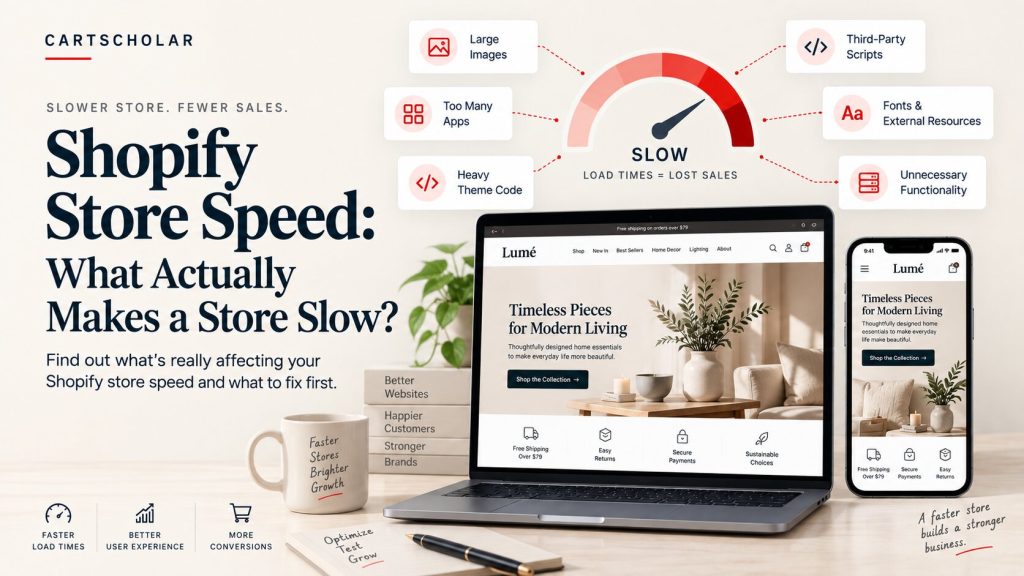
That feeling rarely comes from one single cause. Store speed is usually the combined result of images, Shopify apps, third-party scripts, theme code, JavaScript, CSS, fonts, external resources, heavy page templates, and functionality that is still loading even though nobody uses it any more.
Which is why installing a speed optimization app is not automatically the right response. Some of those apps genuinely help. But an app cannot decide that a wishlist widget on every page is unnecessary, or that a homepage banner is four times larger than it needs to be. Those are judgement calls about your store.
So before changing anything, the useful question is a simple one: what is actually making the Shopify store slow?
1. First, Understand What “Slow” Actually Means
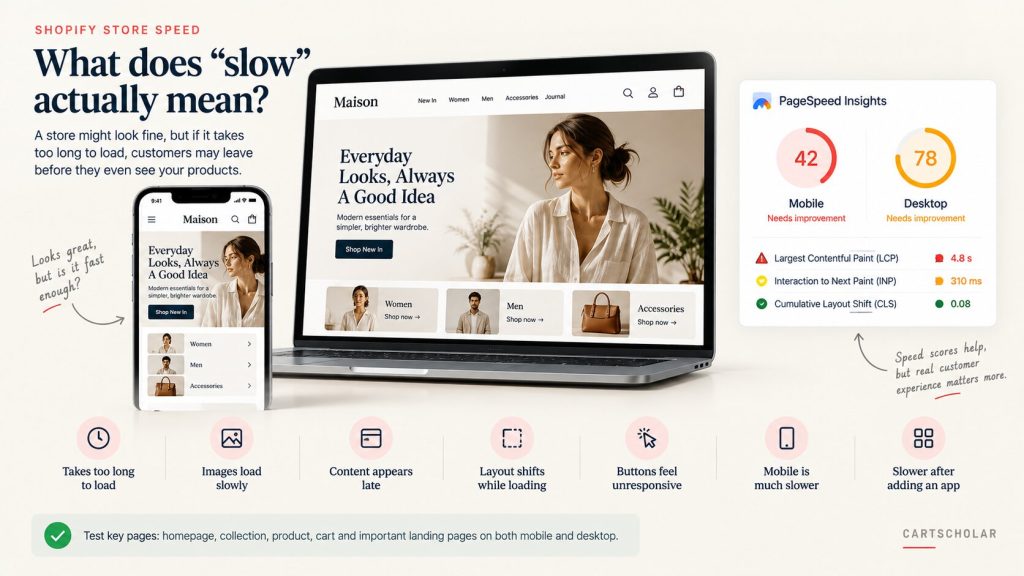
“Slow” means different things to different people, and the distinction matters because each version points at a different cause.
- The page takes too long to start displaying anything useful
- The main content appears late, after the header and background
- Images load slowly or arrive one after another
- The layout shifts around while the page is still loading
- Buttons or menus feel unresponsive when tapped
- Product pages feel noticeably slower than the rest of the store
- Mobile is significantly slower than desktop
- The store became slower after installing an app or adding custom functionality
Each of those symptoms sends you somewhere different. Late main content is usually a loading-order problem. Layout shifting is often images or embedded widgets without reserved space. Unresponsive buttons normally mean JavaScript is busy doing something else.
This is also why a single score is not the whole story. PageSpeed Insights and Lighthouse are genuinely useful diagnostic tools, and the detail underneath the score is worth reading. But they run under specific simulated conditions, and they cannot tell you how the store feels on a three-year-old phone on mobile data. Testing on a real device remains important.
A quick first check
Before getting into tools and reports, work out which pages are actually slow. Performance is not uniform across a store, and it is common for one template to be dragging while everything else is fine.
- Homepage
- Collection page
- Product page
- Cart
- Important landing pages
- Mobile
- Desktop
The question to keep asking is not “what is my score?” but “what is making this particular page slow for a real customer?”
2. Large Images Are One of the Most Common Problems
Ecommerce stores are image-heavy by nature, and that is not a flaw. People buy what they can see clearly.
- Hero banners
- Product images
- Collection images
- Promotional banners
- Background images
- Lifestyle photography
- GIFs
- Decorative graphics
The problem is almost never that a store has images. It is that it loads images far larger than the page ever needed.
A photograph straight from a camera or a design export at full resolution looks identical on screen to a properly sized version, while weighing several times more. Nobody notices when it is done correctly, and everybody feels it when it is not.
Worth checking:
- Image dimensions compared with the space they actually occupy
- File size, particularly on banners and hero images
- Image format, and whether modern formats are being served
- How many images load immediately rather than when scrolled to
- Lazy loading applied where it makes sense — and not applied to the first image on the page
- What mobile receives, since phones rarely need desktop-sized images
- Duplicate or unused images left behind from previous designs
Shopify handles a good deal of image optimization and delivery on your behalf, which helps. But how a theme requests those images still matters — the sizes it asks for, whether it offers the browser appropriate options, and what it loads before the page is usable.
The principle to aim for: visual quality + appropriate dimensions + reasonable file size + efficient loading.
Which also means not optimizing images blindly. Compressing product photography until it looks soft is a poor trade on a store where the photograph is doing the selling.
3. Shopify Apps Can Add More Than Features
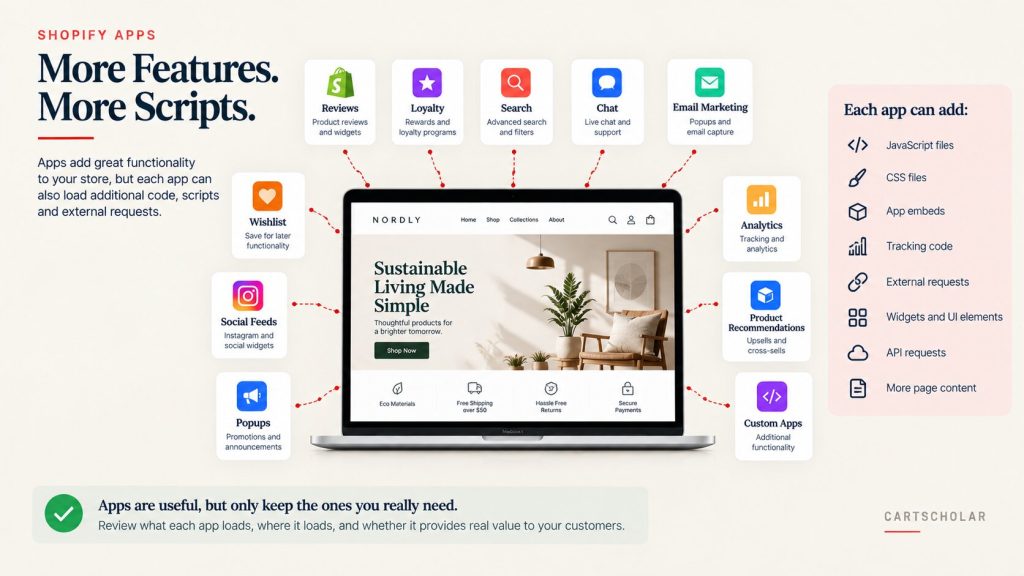
Apps are one of the reasons Shopify works well as a platform. You get functionality in minutes that would otherwise take weeks to build. That convenience is real, and so is what comes with it.
An app can add:
- JavaScript
- CSS
- App embeds
- Tracking code
- External requests
- Widgets
- API requests
- Additional page elements
Most stores accumulate these gradually — reviews, wishlist, loyalty, search, popups, chat, email marketing, social feeds, product recommendations, upselling, analytics, tracking. Each one was a sensible decision at the time. The weight is in the total, not in any single choice.
It is tempting to treat this as a counting exercise, but the number of apps is not the only issue. A store with fifteen well-behaved apps can outperform one with six that each load everywhere and do more than they need to.
What is each app loading, where is it loading, and do I actually need it?
That question tends to surface the same things:
- Apps that are installed but no longer used
- Apps loading site-wide when they are only needed on one template
- Two apps providing overlapping functionality
- Widgets that add very little for what they cost
- Features that could be handled more simply within the theme
Worth knowing: uninstalling an app does not always remove everything it added. Some apps leave code behind in the theme — snippets, embeds, or references that stay put after the app is gone. A store can carry the cost of an app it stopped paying for months ago.
4. Third-Party Scripts Can Quietly Slow Down Your Store
Not everything slowing a Shopify store comes from the theme or the app store. A lot of it arrives from services the business chose deliberately.
- Analytics
- Advertising pixels
- Heatmaps
- Chat
- Reviews
- Social widgets
- Marketing platforms
- Personalization
- Conversion tracking
- A/B testing
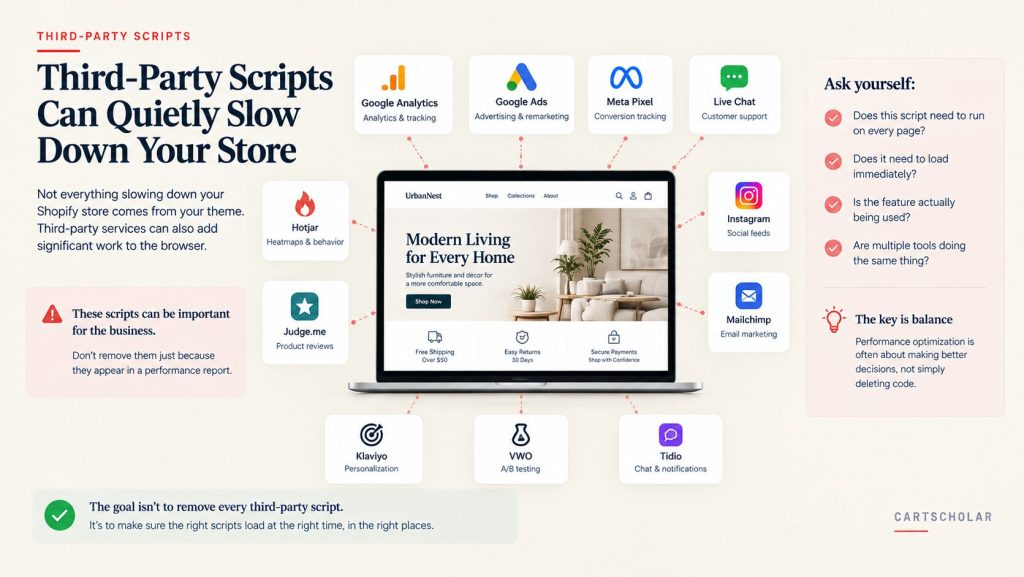
These scripts can be important for the business. Conversion tracking that informs ad spend is not something to delete because a performance report flagged it. The report measures page weight; it does not know what the tool is worth to you.
The more useful approach is to interrogate each one:
- Does this script need to run on every page, or only on some?
- Does it need to load immediately, or can it wait until the page is usable?
- Is the feature actually being used, or was it set up and forgotten?
- Are multiple tools doing the same job?
There is a meaningful difference between removing a script and making it load more sensibly. A chat widget that appears after the page is interactive costs far less than one competing with your product images, and the customer experience is unchanged. Loading order and timing are often where the real gains are.
Performance optimization is often about making better decisions, not simply deleting code.
5. Theme Code and Custom JavaScript Matter
Most stores are customized over time, and each change adds a little weight. A theme can become heavier as developers add:
- Custom sections
- Sliders
- Popups
- Animations
- Product filters
- AJAX functionality
- Custom product features
- Quick views
- Mega menus
- Recommendation systems
- Custom tracking
- Third-party integrations
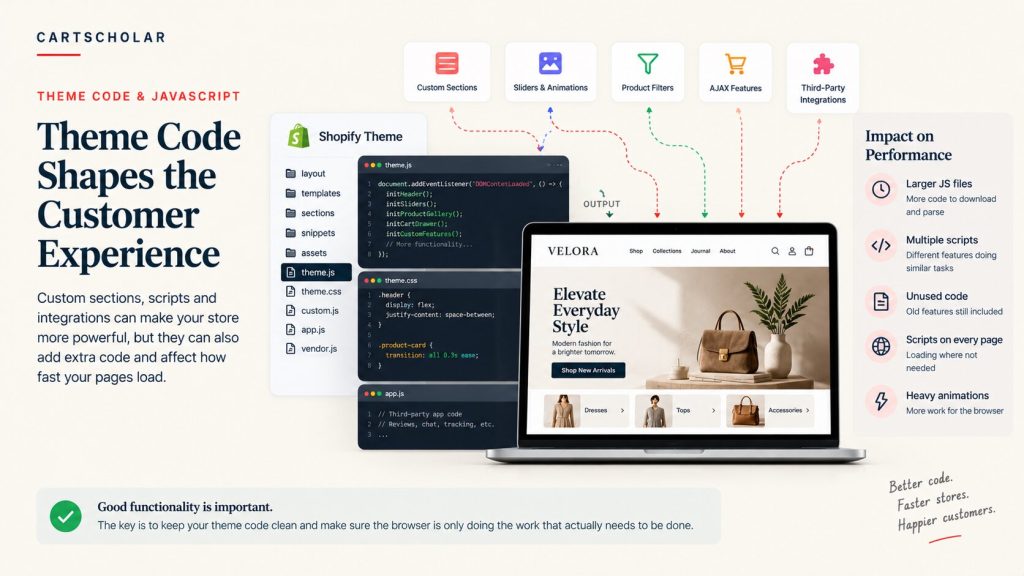
One customization usually isn’t the problem. The problem is what accumulates over months or years, particularly when several people have worked on the theme without a shared picture of what is already there.
Signs worth looking for:
- Very large JavaScript files
- Multiple scripts doing similar things
- Old features still being loaded long after they were retired
- Code left behind by apps that were removed
- Scripts loading on pages where they are not required
- Heavy animations
- Custom functionality running before the page becomes usable
It is worth saying plainly that more JavaScript is not automatically better. A feature built with a large library is not superior to the same feature built simply — it is just more expensive for every visitor who loads the page.
The goal is straightforward: the browser should do only the work that actually needs to be done.
6. Fonts, Apps, and External Resources Add Up
Fonts are one of the easiest things to overlook, partly because they are usually decided once, early, and never revisited.
- Multiple font families
- Multiple font weights
- Custom fonts
- Icon fonts
- External CSS
- External JavaScript
- Design libraries
- Third-party resources
A store using three families across seven weights is loading a lot of font data for a design that probably uses three or four of them. An icon font loaded for a handful of icons is another common one.
Every external dependency asks the browser to do something extra — find the resource, connect to another server, wait for it, then use it. Individually these are small. Collectively, on a phone with an average connection, they are not.
None of which makes external resources bad. Plenty of them earn their place. The exercise is identifying the ones that do not provide enough value to justify what they cost.
7. The Homepage Isn’t Always the Problem
Performance testing tends to start at the homepage, because that is the URL people type. But different Shopify templates can have completely different performance characteristics, and the homepage is frequently the best-behaved page on the store.
A homepage, a collection page, a product page and a campaign landing page are built differently, load different things, and can perform nothing like each other.
Product pages in particular carry a lot:
- Large image galleries
- Reviews
- Product recommendations
- Size guides
- Product options
- Subscription widgets
- Upsells
- Sticky add-to-cart
- Custom JavaScript
- Third-party apps
That matters because the product page is where buying decisions happen. A fast homepage and a slow product page is the wrong way round.
So test the pages customers actually use. At minimum, walk the path:
Homepage → Collection → Product → Cart → Checkout
Add any campaign or landing pages that matter, especially ones receiving paid traffic, where slow loading costs money directly.
It is also worth comparing:
- Mobile against desktop
- First load against a repeat visit, once files are cached
- One template against another
- Pages with app features against pages without them
8. How to Find What’s Actually Making Your Store Slow
This is the part that turns a vague sense of slowness into something you can act on. Work through it in order rather than jumping to fixes.
Step 1: Test important pages
Not just the homepage. Test the templates customers spend time on, on both mobile and desktop, and note which ones are genuinely worse rather than assuming.
Step 2: Look for heavy assets
On the slow pages, find out what is actually being downloaded and how much of it there is.
- Images
- JavaScript
- CSS
- Fonts
- Third-party resources
- Widgets
Step 3: Review Shopify apps
Go through the installed list honestly, one at a time.
- Is the app still required?
- Where does it load?
- What does it add to the page?
- Is another app already providing the same functionality?
Step 4: Review custom code
Theme customizations accumulate quietly, so this is usually where the surprises are.
- Old scripts
- Duplicate functionality
- Unused code
- Heavy libraries
- Globally loaded scripts
- Features that could be simplified
Step 5: Test after each meaningful change
Change twenty things at once and the store may well be faster — but you will have no idea which change did it, which did nothing, and which quietly broke something. When a problem appears later, you have twenty suspects instead of one.
Step 6: Test the customer journey
Performance work touches scripts that other things depend on, so confirm the store still works before calling it done.
Product → Add to cart → Cart → Checkout → Payment
Then check navigation, search, filters, forms and tracking. Tracking is the one most often broken by performance changes, and the one least likely to announce it.
9. What Should You Fix First?
The instinct when a store is slow is to fix everything. It is usually the least effective approach, and the hardest to learn anything from.
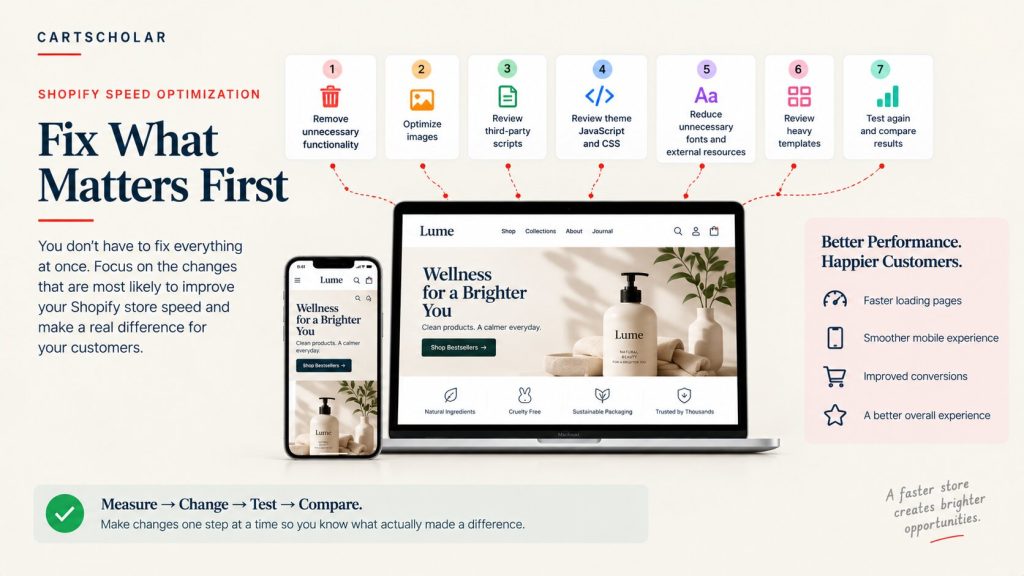
A practical order:
- Remove unnecessary functionality. The fastest code is the code that never loads. Start with what the store no longer needs.
- Optimize oversized images. Usually the largest single win, and the lowest risk of breaking anything.
- Review third-party scripts. Decide what each one is worth, then fix how and where it loads.
- Review theme JavaScript and CSS. Look for accumulation, duplication and code running where it is not needed.
- Reduce unnecessary fonts and external resources. Trim the families and weights the design does not actually use.
- Review heavy templates. Focus on the templates that tested worst, particularly product pages.
- Test again. Compare against where you started, on the same pages and the same devices.
The pattern that works is measure → change → test → compare. Not change everything and hope it is faster.
It is also worth being realistic about outcomes. How much difference any of this makes depends on the individual store — its theme, its apps, its catalogue, its traffic and the devices its customers use. Two stores applying the same changes will not get the same result. Shopify performance optimization is an iterative process, not a one-off task with a guaranteed number at the end.
A slow Shopify store rarely has one magical problem waiting to be found. Performance is usually the result of several things accumulating over time: images, apps, scripts, theme code, fonts, third-party services and custom functionality, each added for a good reason and never reviewed together.
The approach that works is unglamorous. Identify the biggest bottleneck, fix it carefully, measure whether it actually helped, and confirm the customer journey still works from product page to completed order.
A performance improvement isn’t successful if it breaks the customer experience.
That last part gets skipped more often than it should. A store that loads half a second faster but has a checkout step that no longer works, or conversion tracking that stopped firing, has not been improved.
Need help improving your Shopify store speed?
If your Shopify store feels slow and you’re not sure what is causing it, CartScholar can review the theme, apps, scripts and important customer journeys to identify the practical performance issues — and recommend what is actually worth fixing.