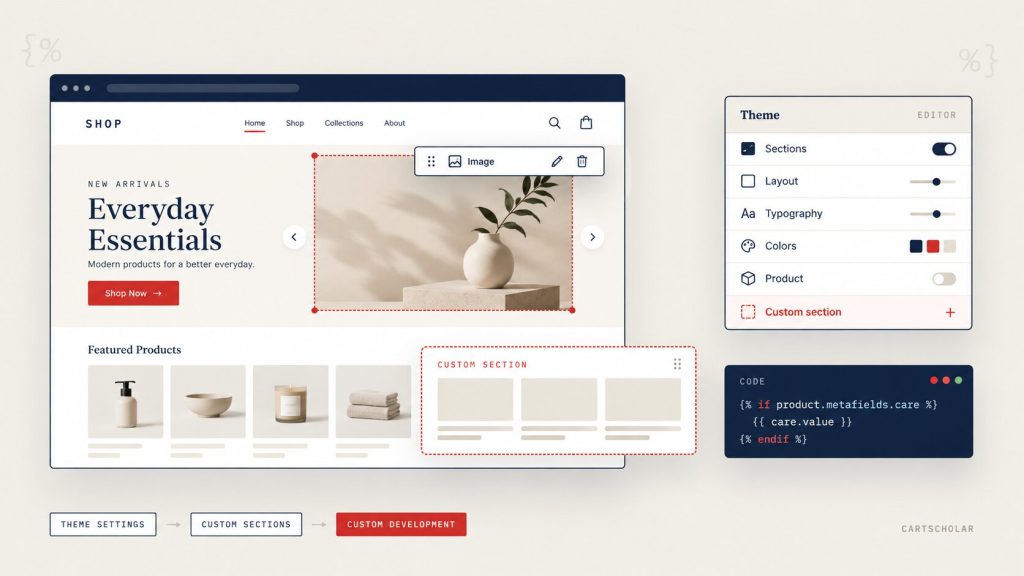
Most Shopify customization projects start the same way. A merchant buys a theme, sets it up, launches, and everything is fine for a while. Then the business moves on. A new product line needs a different kind of product page. The homepage needs a section the theme doesn’t have. The navigation made sense with 40 products and doesn’t with 400. Someone points out the mobile layout buries the “Add to cart” button.
So you open the theme editor, look for the setting that would fix it, and it isn’t there.
That’s the moment the real question appears: is this something the theme can do and I just haven’t found it, or does it need a developer? It’s a genuinely difficult question to answer from the merchant’s side, because Shopify themes hide the boundary well. The editor makes some quite deep changes feel like flipping a switch, then stops abruptly at things that seem equally simple.
This article maps that boundary. What you can change yourself, what needs code, what custom sections actually are and why they matter more than most merchants realise, and how to decide between customizing the theme you have and starting over. No tutorial code — just a clear picture of what Shopify theme customization can and can’t reach, so you can scope a requirement before you pay for it.
1. What Shopify Theme Customization Actually Means
“Customization” gets used for three quite different kinds of work, and confusing them is why quotes for the same request can vary so widely.
Configuration is using the settings the theme already provides — colours, fonts, which sections appear on the homepage, how many products per row. Nothing is being built. You’re using controls the theme author put there deliberately.
Structural customization is changing what the theme is made of: adding a section type that doesn’t exist, changing what appears on a product page, altering how a template is assembled. This needs code, but it works with the theme’s architecture rather than against it.
Functional customization is changing how something behaves — a cart that calculates something new, a search that filters differently, a product page that reacts to a customer’s selection. This is development work, and it’s where cost and risk concentrate.
Most real requirements are a mix. “Make our product page better” usually turns out to be some configuration, one or two custom sections, and a small amount of functional work. Splitting a request into those three buckets is the fastest way to understand what it will actually involve.
One more thing worth knowing: what’s possible depends heavily on your specific theme. Shopify themes are not standardised. Two themes can both be well built and offer completely different customization surfaces. Advice that starts “in Shopify you can just…” should always be checked against the theme you actually own.
2. What You Can Change Without Custom Code
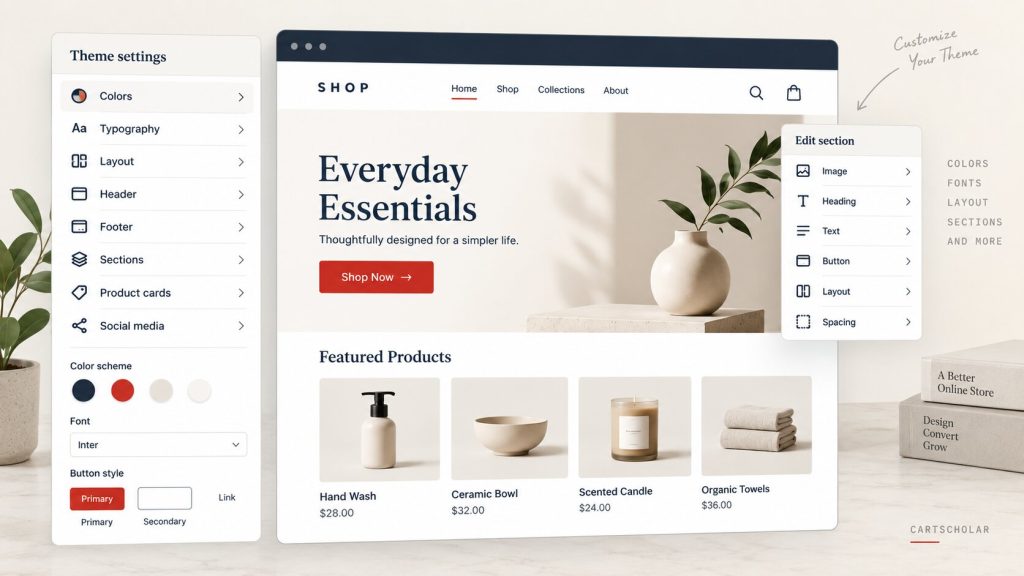
More than most merchants expect. On a modern theme, the editor covers:
- Brand and type — colours, fonts, button styles, corner radius, and other global settings
- Sections and blocks — adding, removing and reordering the building blocks of a page
- Content — headings, body text, images, videos, links, buttons
- Layout settings the theme exposes — column counts, image ratios, section padding, container widths
- Header and footer — logo, menu, announcement bar, footer columns and links
- Product and collection display — grid density, what shows on a card, sort order, filters
- Mobile-specific settings, where the theme provides them
Two capabilities are worth calling out, because they’re the ones merchants most often don’t know exist.
Sections on every template
Older Shopify themes only let you rearrange the homepage. Everything else was fixed. Modern themes let you add and reorder sections on almost any template — product pages, collection pages, blog posts, the cart, standard pages. If you’ve been assuming your product page layout is locked, it’s worth opening the editor and checking. A lot of requests that sound like development work are just this.
You can also create alternate templates. If one product needs a different layout from the rest, you can build a second product template, arrange it differently, and assign it to just that product. No code.
Connecting metafields without a developer
Metafields are custom fields you add to products, collections or customers — a care instruction, a material, a delivery lead time, a certification. You define them in Shopify admin, fill them in per product, and then connect them to text or image elements in the theme editor through what Shopify calls dynamic sources.
That connection is the part worth understanding. Once it’s set up, the theme shows that field automatically for every product that has it. You get product-specific content without a developer touching anything per product.
Where this stops: dynamic sources fill in content, not logic. Displaying a lead-time metafield is a setting. Showing a different delivery message depending on what that metafield says is code.
3. Layout and Design: Most of It Is Adjustable
If your concern is visual — it doesn’t look like your brand, it feels dated, the spacing is wrong, mobile is awkward — the answer is usually yes, and often without a rebuild.
Typically adjustable through settings or modest CSS work:
- Header layout, logo size and placement, sticky behaviour
- Homepage composition and section order
- Hero and banner treatments, overlays, text positioning
- Product grid density, card content, image cropping
- Collection page layout, filters and sorting
- Promotional strips and announcement bars
- Footer structure
- Typography scale, weights and line height
- Vertical rhythm and spacing throughout
- Mobile-specific spacing and sizing
Two points from practice.
Spacing does more work than colour. Merchants often ask for a redesign when what’s actually wrong is inconsistent vertical spacing and a typographic scale that doesn’t establish any hierarchy. Tightening those two things changes how a store feels more than a new theme usually does, and costs a fraction as much.
Mobile is a separate design, not a smaller one. A layout that reads well on desktop can fail on a phone: a sticky header that covers the buy button, a three-across grid that becomes unreadable, a filter drawer that’s hard to dismiss. Most themes expose fewer mobile settings than desktop ones, so mobile refinement is more often where light custom CSS earns its place.
The practical conclusion: a theme that’s “wrong” visually is usually fixable. Design dissatisfaction alone rarely justifies a rebuild.
4. Custom Sections Are the Most Useful Customization Most Merchants Miss
If there’s one thing worth understanding from this article, it’s this one.
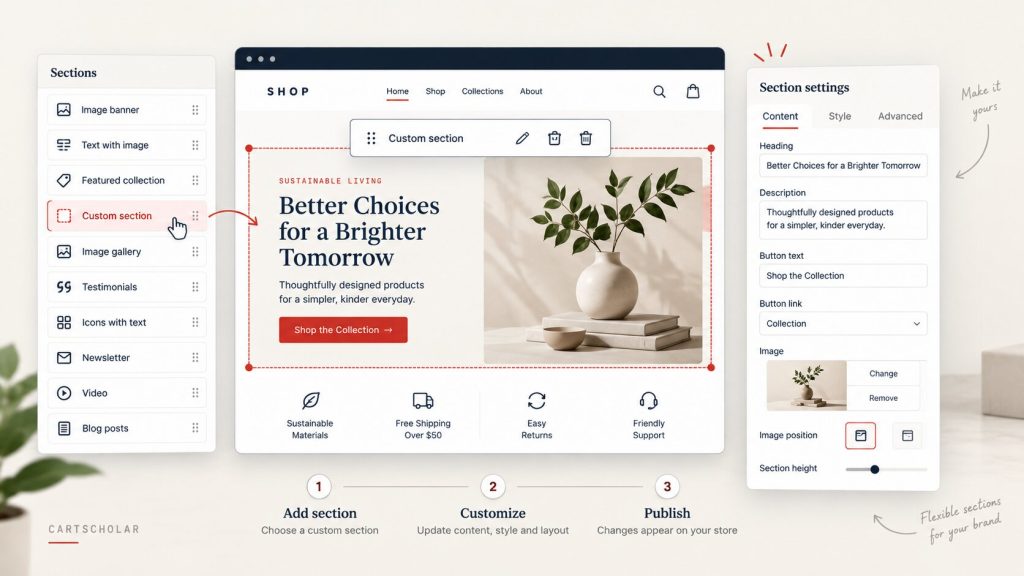
A section is a self-contained block of page content you place, reorder and edit through the theme editor. Your theme ships with a set of them. A custom section is a new one built specifically for your store — and critically, built so you can edit it afterwards.
That last part is what merchants underestimate. A custom section isn’t just a fixed block of design. When it’s built properly, it comes with its own settings in the theme editor: text fields, image pickers, colour options, link fields, repeatable items. The developer builds it once; you use it indefinitely, on as many pages as you want, changing the content yourself.
Realistic examples of sections merchants commonly need:
- Image and text in a specific arrangement the theme doesn’t offer
- A comparison block — your product against alternatives, or tiers against each other
- Feature or benefit rows with icons, in your brand’s layout
- Before and after presentation for products where the result is the selling point
- Certification, sourcing or compliance blocks that need to look deliberate rather than bolted on
- A promotional banner with your own rules about layout and behaviour
- A tailored call-to-action that doesn’t look like the theme’s default
Here’s the economic argument, which matters more than the design one. The alternative to a custom section is usually one of two things: paying a developer every time the content changes, or an app that adds a page builder to your store — extra cost, extra scripts, and another dependency. A well-built custom section removes both. It’s a one-off cost that eliminates ongoing ones.
When you commission one, ask explicitly which settings will be editable. “Build us a comparison section” and “build us a comparison section where we can edit the rows, labels and images ourselves” are different jobs, and the second is the one you want.
5. How Deeply Product Pages Can Be Customized
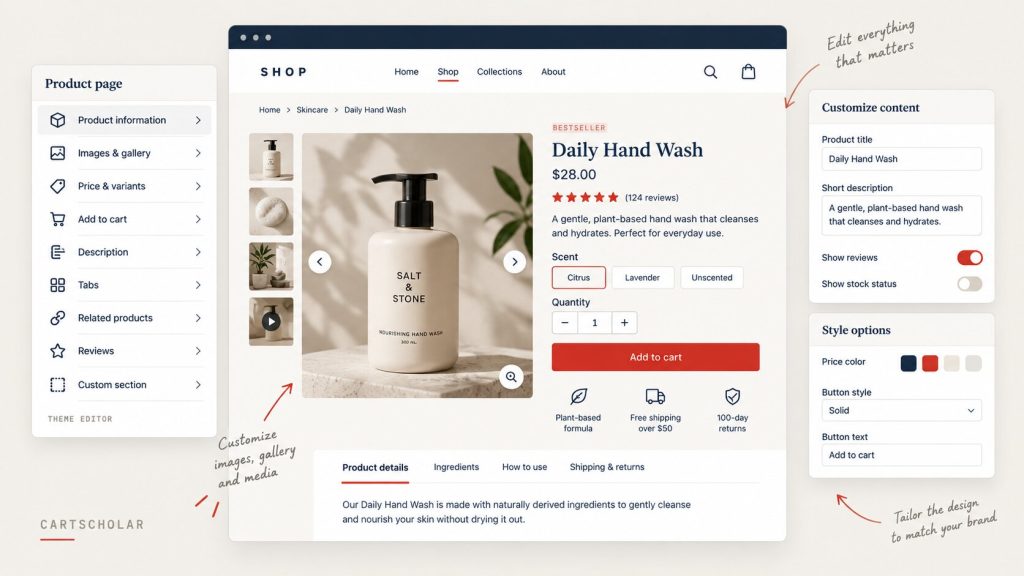
The product page is where most stores make or lose money, and it’s the most customizable template in Shopify. It’s also where the line between configuration and development runs right through the middle of a single page.
Usually configuration:
- Which elements appear and in what order — images, title, price, description, trust badges
- Image gallery style, thumbnails, zoom, mobile behaviour
- Whether description content sits in tabs or accordions, where the theme supports it
- Adding sections below the buy area — related products, FAQs, shipping information
- Displaying metafield content through dynamic sources
- Using an alternate product template for a subset of products
Usually development:
- Variant selectors that behave differently — swatches instead of dropdowns, images that swap on selection, unavailable combinations handled gracefully
- Conditional content — messaging that changes based on tags, inventory, collection, or a metafield value
- Size guides tied to the specific product rather than one generic modal
- Dynamic delivery estimates based on location, stock or product type
- Custom badges with rules — “low stock” that reflects real inventory, “new” that expires by date
- Bundles, custom purchase options, or add-ons that affect what actually goes into the cart
- Quantity breaks or pricing rules shown on the page
The distinction is consistent and worth internalising: displaying information is usually configuration; deciding what to display, or changing what the page does, is development.
A practical note on badges specifically, since they’re requested constantly. A static badge you place yourself is trivial. A badge that appears automatically when stock drops below a threshold is a small piece of development — and it’s the automatic one that’s actually useful, because nobody remembers to remove the manual one.
6. Header, Navigation, Search and Cart
These four areas sit on every page, so problems here are felt everywhere. They’re also where merchant expectations and theme capabilities diverge most often, because the visible part looks simple and the behaviour underneath isn’t.
Header and navigation. Layout, logo, sticky behaviour and menu structure are usually settings. Menus themselves are managed in Shopify admin, not the theme, which catches people out. Mega menus with images and promotional content depend entirely on whether your theme supports them — some do, some don’t, and adding one to a theme that doesn’t is real development work. Mobile navigation is frequently the weak point: a menu that works as a desktop dropdown can become several taps deep on a phone, and restructuring that is design work before it’s code.
Search. Basic search comes with the theme. Predictive search with suggestions as you type is supported by many modern themes but not all. Search that filters by your own product attributes, ranks results differently, or handles synonyms is either a development job or an app.
Cart. Whether you use a cart drawer, a cart page, or both is often a setting. Beyond that, most cart requests are functional: free-shipping progress bars, upsells and cross-sells in the drawer, gift notes, delivery date pickers, quantity rules, custom messaging based on cart contents. These change behaviour and need development or an app.
One boundary worth stating plainly, because it causes more confusion than anything else on this list: the checkout itself is not a theme file. Your theme’s customization options stop at the cart. Checkout is controlled by Shopify, with branding settings available to all merchants and deeper customization available through Shopify’s own checkout extensibility on higher plans. If someone offers to rewrite your checkout the way they’d edit a product page, that’s a signal to ask more questions.
7. Liquid, CSS and JavaScript: What Each One Actually Does
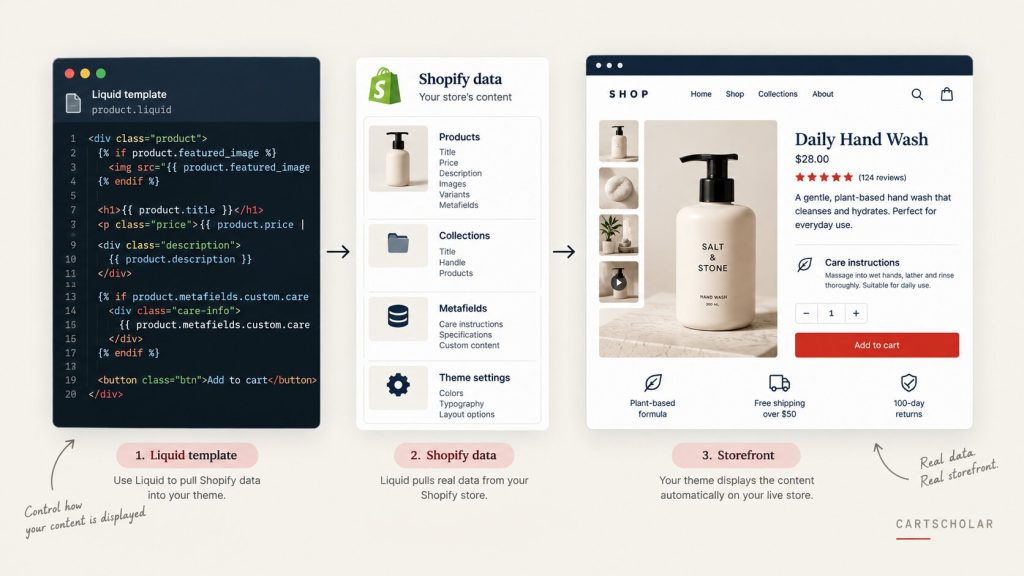
You don’t need to write these. You do benefit from knowing which one a requirement touches, because it tells you roughly what you’re asking for.
Liquid is Shopify’s templating language. It decides what information appears. Your theme doesn’t contain your product titles — it contains Liquid instructions saying “put the product’s title here,” and Shopify fills that in for each product. Liquid can also make decisions: if a product has a particular metafield, show this message; if it’s out of stock, show that one instead. When a requirement starts with “only show this when…”, you’re describing Liquid.
CSS controls how things look — size, colour, spacing, position, and how a layout reorganises on smaller screens. Purely visual requests are usually CSS, which is why they’re typically the cheapest to action. Most mobile refinements land here.
JavaScript controls what happens when someone interacts — clicking, typing, selecting a variant, opening a drawer. If your requirement involves something updating without the page reloading, it involves JavaScript.
A quick way to scope a request in your own head:
- “Show our care instructions on product pages” → Liquid, plus metafields
- “Make the buy button bigger on mobile” → CSS
- “Update the price when someone picks a variant” → JavaScript, though most themes already do this
- “Show a different shipping message for heavy items” → Liquid, with a rule behind it
- “Let customers compare two products side by side” → all three, and a real build
None of this means you should start editing theme code. It means you can describe what you want in terms a developer can scope quickly, which usually results in a more accurate quote.
8. What Genuinely Requires Custom Development
Pulling the threads together, here’s what reliably needs a developer:
- New section types the theme doesn’t include
- Conditional content driven by tags, metafields, inventory, customer or cart state
- Custom product functionality — bundles, configurators, add-ons, made-to-order options
- Custom search or filtering beyond what the theme and Shopify provide
- Navigation structures the theme wasn’t built for
- Cart behaviour — progress bars, upsells, rules, custom messaging
- Metafield-driven logic, as opposed to metafield display
- Interactive behaviour that isn’t already in the theme
- Integrations with systems outside Shopify — ERP, subscriptions, fulfilment, custom pricing
- Anything the theme’s architecture simply doesn’t accommodate
The test that holds up across almost all of these: are you changing what something says, or changing what something does? Changing what it says is usually available to you. Changing what it does is usually development.
A related point on apps, since they’re often the alternative. An app can deliver many of these faster and cheaper than custom work, and sometimes that’s the right answer. The trade-off is that apps add scripts to your storefront, carry ongoing fees, and become dependencies you’re exposed to if they change or disappear. Three apps solving three small problems can cost more in monthly fees and page weight than one piece of custom work would have cost once. Worth pricing both ways rather than assuming either.
9. Customize the Existing Theme, or Start With a New One?
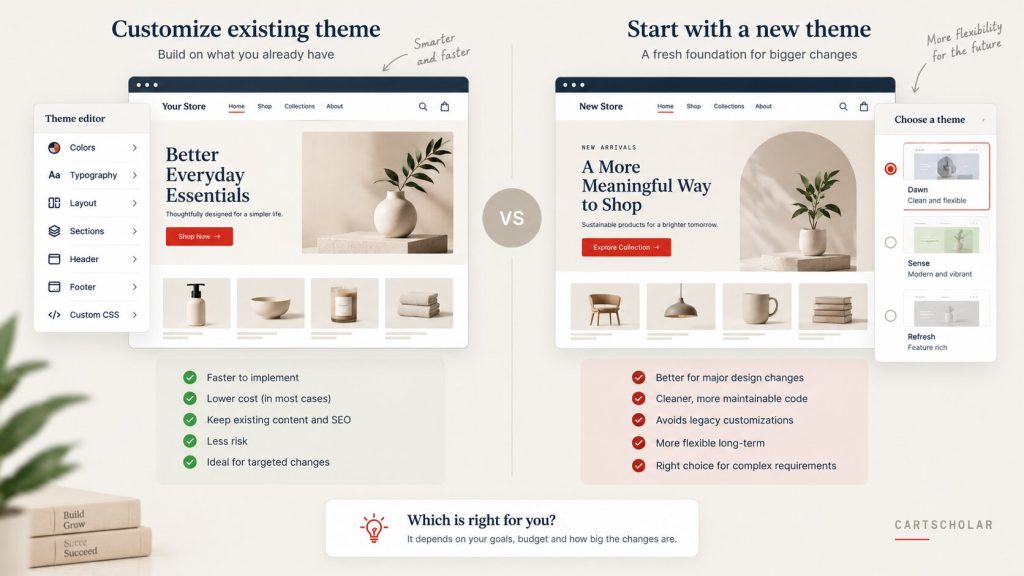
This is a business decision, not a technical one, and the honest answer is that customizing what you have is right more often than rebuilding.
Customizing your existing theme usually makes sense when:
- The theme broadly works and the gaps are specific
- You need branding updates rather than a different structure
- The product page needs improvement, not replacement
- You need a handful of custom sections
- Mobile needs attention
- The theme is well built and still maintained by its author
- Your customizations so far have been modest and documented
A new theme or rebuild is worth considering when:
- The theme has been modified so heavily that nobody can safely change anything
- Updates have been abandoned because they’d overwrite customizations
- What you want is structurally different from what the theme does
- The theme is old enough to predate modern Shopify capabilities, and you keep hitting that wall
- Multiple developers have worked on it with no shared approach, and the code shows it
- You’re paying repeatedly to force requirements into a theme that resists them
- Performance problems trace back to accumulated layers of past customization
The signal to watch for isn’t any single request — it’s the pattern. When straightforward changes keep turning out to be expensive, the theme is usually telling you something. One awkward request is normal. A run of them means the architecture is working against you, and further customization is likely to get more expensive, not less.
Equally, don’t rebuild because a new theme looks appealing in a demo. A rebuild means re-doing every customization you’ve accumulated, re-testing every journey, and re-checking every app integration. It’s justified when the current foundation is genuinely holding you back — not when the real problem is spacing and typography.
10. How to Customize Without Creating Problems
Most Shopify theme customization that goes wrong does so for ordinary reasons, not exotic ones.
Before any significant change
Duplicate the theme first. Shopify lets you duplicate a theme in one click. Work on the copy, publish when it’s verified. This single habit prevents most customization disasters, and it costs nothing.
Understand what’s already there. If previous developers have modified the theme, new work needs to fit with theirs. Editing a theme without knowing what’s been done to it is how small changes cause distant breakages.
Know your theme’s update situation. Direct code edits usually can’t survive a theme update — the update overwrites them. That doesn’t mean never customize; it means know what you’re trading, and keep a record of what was changed and why.
While changes are being made
Keep custom code minimal and contained. The goal is customization someone else can understand and maintain later, not the cleverest possible solution.
Design for mobile at the start. Retrofitting mobile after desktop is signed off is consistently more expensive than handling both together.
Watch what you’re adding to the page. Extra scripts, extra fonts, oversized images and additional apps all accumulate. Performance rarely degrades in one dramatic step; it degrades gradually until someone notices the store feels slow.
Before publishing
Test on real devices, not just a resized browser window. Touch targets, sticky elements and drawers behave differently on actual hardware.
Test the full purchase journey, not just the page you changed: product, variant selection, add to cart, cart, checkout, confirmation email. Customizations that look confined to one template have a habit of affecting what happens two steps later.
Check your apps still work. Apps inject content into theme areas. Restructure that area and the app’s content can move, break, or silently vanish — and app problems are rarely obvious from looking at the page.
Check the templates you didn’t touch. A change to a shared element affects every template that uses it.
The practical takeaway
You very likely don’t need a fully custom Shopify theme. For most stores the effective approach is: a well-chosen existing theme, thoughtful configuration, a few purpose-built custom sections, targeted development only where it’s genuinely required, and proper testing before anything goes live.
What’s right for your store depends on the specific requirement, how your theme is architected, what’s already been customized, which apps you depend on, how the store performs today, and who will maintain it a year from now. A requirement that’s an afternoon on one theme can be a significant project on another — which is why a look at the actual theme is worth more than any general answer, including the ones in this article.
If you’re not sure whether something you need can be handled in the theme editor or requires custom development, CartScholar can review your existing theme and recommend the most practical route — including saying when the change isn’t worth making.