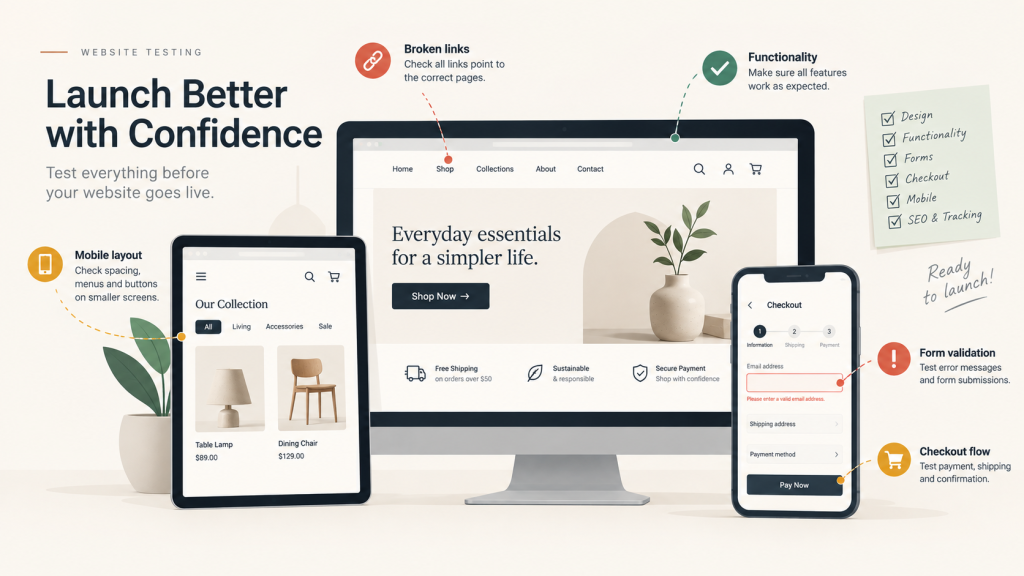
Finishing a website and launching a website are two different things.
By the time a site is ready to go live, everyone involved has been staring at it for weeks. The design is signed off, the content is in, the homepage looks right. That’s usually the moment someone suggests pushing it live on Friday — and the moment the small, invisible problems start to matter.
Pre-launch problems rarely look like problems. A contact form that shows a “Thank you” message but never delivers the email looks fine. A checkout button that works on desktop but sits underneath a sticky header on an iPhone looks fine in a design review. A discount code that applies correctly on the product page but silently drops at checkout looks fine right up until a customer emails to complain.
Visual review catches visual problems. It doesn’t catch functional ones. And on a business website, the functional problems are the expensive ones — they quietly cost you enquiries or orders while everything appears to be working.
This is a checklist you can work through yourself. A browser, a phone, and two to three focused hours. Longer if you run a store.
1. Quick Pre-Launch Website Testing Checklist
The 60-second version. Detail follows.
- Devices — a real phone and tablet, not just a resized browser window
- Browsers — Chrome and Safari at minimum, desktop and mobile
- Navigation and links — menus, logo, footer, CTAs, no 404s, no staging URLs
- Forms — submitted, validated, and the email confirmed as received
- Ecommerce — a real order, on the live payment setup, on a phone
- Search and filtering — results, sorting, and the no-results state
- Content — pricing, contact details, no placeholder text left behind
- Images and media — nothing broken, nothing oversized, sensible mobile cropping
- Performance — tested on mobile data, not office wifi
- SEO and indexing — titles, canonicals, redirects, and noindex removed
- Analytics — tracking confirmed as firing, not just installed
- Errors — 404s, failed payments, empty results
- Security and technical — SSL, admin access, backup taken
- Final customer journey — the whole path walked once as a customer
2. Devices & Browser Testing
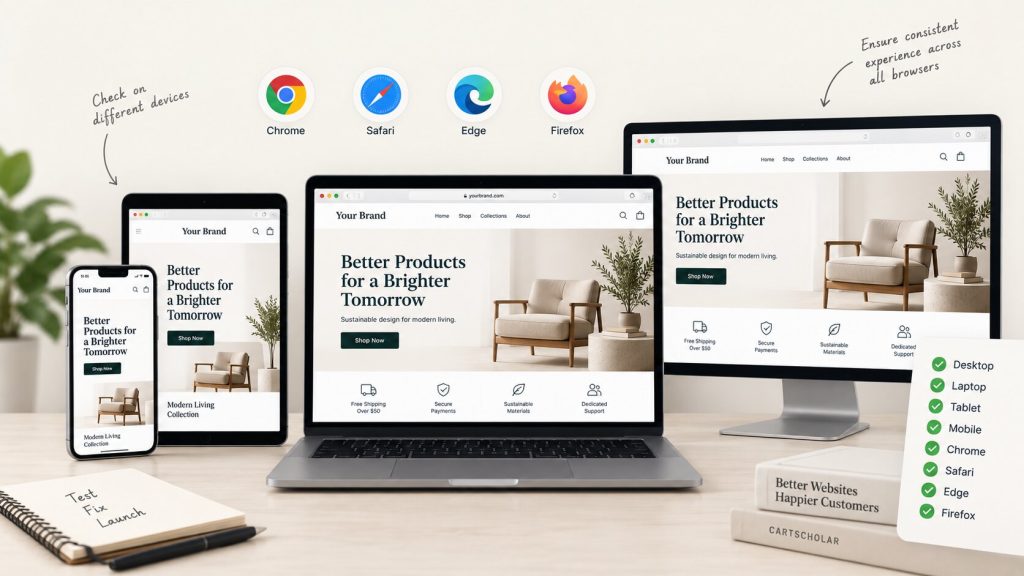
Resizing a browser window is a useful first pass. It is not device testing.
A narrow desktop window has no touchscreen, doesn’t have iOS Safari’s address bar sliding in and out, and still triggers hover behaviour that doesn’t exist on a phone. Plenty of layouts that look correct in a resized Chrome window fall apart on an actual device.
You don’t need a device lab. A laptop, a phone, and a tablet if you have one covers most real traffic. Borrow a phone on the other operating system for ten minutes, and check tablets in both portrait and landscape — landscape exposes layout assumptions quickly.
What to look for, beyond “is it responsive”:
- Sticky headers covering content. A fixed header taking 20% of a phone screen can land on top of the “Add to cart” button or a form’s submit button as you scroll.
- Horizontal scrolling. Usually one oversized image, a wide table, or a fixed pixel width. Swipe sideways on every key page — if it moves, something is overflowing.
- Tap targets too close together. Links that sit comfortably apart on desktop stack tightly on mobile. If you have to aim carefully, it’s too tight.
- Hover-dependent interactions. Dropdown menus, image zoom and tooltips built around hover have no touch equivalent. They either get a tap behaviour or they don’t belong on mobile.
- Popups and modals. The close button is what breaks. On a small screen the “X” often ends up off-screen or under the browser chrome. A popup a visitor can’t dismiss is a visitor who leaves.
- Sliders and product galleries. Check they swipe, don’t trap vertical scrolling, and that pinch zoom actually works — mobile zoom is frequently broken or unusably slow.
- Image cropping. Banners that are fine on desktop routinely crop off the subject on a phone, or drop hero text onto a busy part of the photo.
- Forms on a phone. Does the keyboard cover the field you’re typing into? Is the submit button still reachable once everything is filled in?
Browser compatibility
Check Chrome, Safari, Firefox and Edge on desktop, plus Safari on iPhone and Chrome on Android. Safari differs most often — scrolling behaviour, sticky positioning, date inputs, video. If you only have time for two desktop browsers, make them Chrome and Safari.
The goal isn’t pixel-identical rendering. Small differences in font smoothing and form control styling are normal. What matters is that the layout holds without overlap, navigation opens, forms submit, and checkout completes. If the site is usable and the money paths work in every browser, that’s the bar.
3. Navigation, Links & Forms
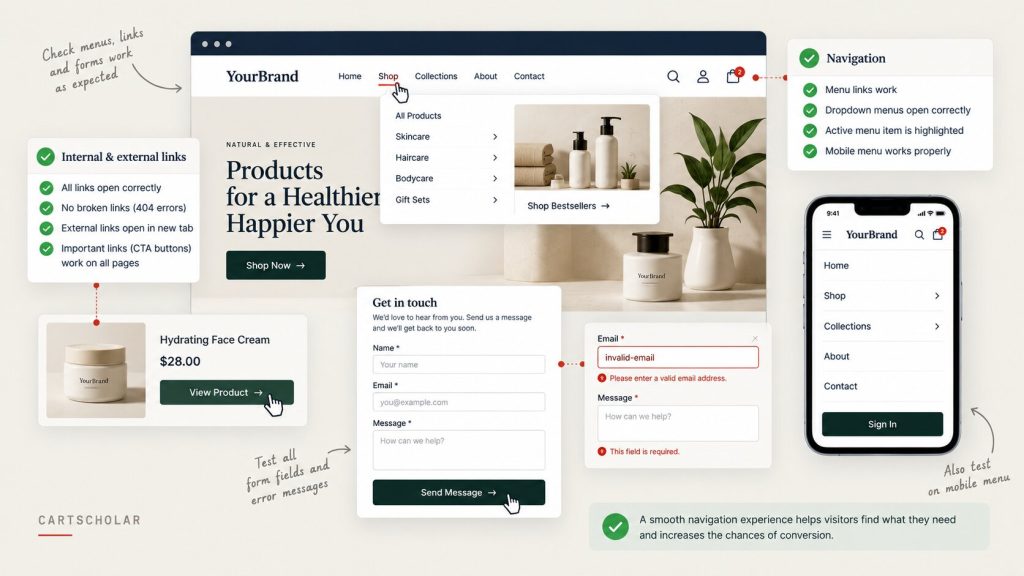
Links and forms are functionality, not design. They need clicking and submitting, not looking at.
Navigation and links
Click every item in the main menu, the mobile menu, the footer, and every CTA on the homepage. Check the logo returns to the homepage — that one gets missed more often than you’d expect.
You’re watching for four things: 404s on pages renamed during the build, links pointing at the wrong page (common when a page is duplicated as a template), staging URLs hard-coded into buttons and banners, and anchor links that jump nowhere. Staging URLs are the sneaky one — they work perfectly while you’re testing on staging. Search your content for the staging domain before launch.
Then stop checking links individually and click through journeys: homepage → service page → contact, or category → product → cart. A link can be technically valid and still lead somewhere unhelpful. You only notice that by following the path a real person takes.
If you’re replacing an existing site, pull your current URLs from Search Console or your sitemap and confirm the important ones redirect somewhere sensible. Old URLs that 404 after a relaunch are one of the most common causes of a traffic drop that has nothing to do with the new design.
Forms
A broken form is completely silent. Nothing errors, nothing alerts you. Enquiries just stop arriving, and you find out weeks later when someone calls to ask why you never replied.
The website generates the “Thank you”. A mail service sends the email. Those are two different systems, and the first one doesn’t know whether the second one worked. Check the inbox every time — and the spam folder, because a form landing in spam is only marginally better than one that doesn’t send.
For every form on the site — contact, quote, newsletter, registration, booking:
- Submit it with real data and confirm the email arrives
- Check the recipient address. Forms are often set up pointing at the developer’s address or a generic admin account and never changed
- Submit it empty, and with an invalid email, and check the errors are clear about what’s wrong and where
- Confirm the success message or thank-you page, and that the page it lands on actually exists
- Read the auto-reply as a customer would — wrong business name and placeholder text are common, because nobody reads their own
- Test after spam protection is enabled, not before. reCAPTCHA and honeypot fields can block legitimate submissions when misconfigured
- If enquiries feed a CRM, follow the record through. The form submitting is step one; the record appearing where your team works is the step that matters
4. Ecommerce Testing: The Complete Customer Journey
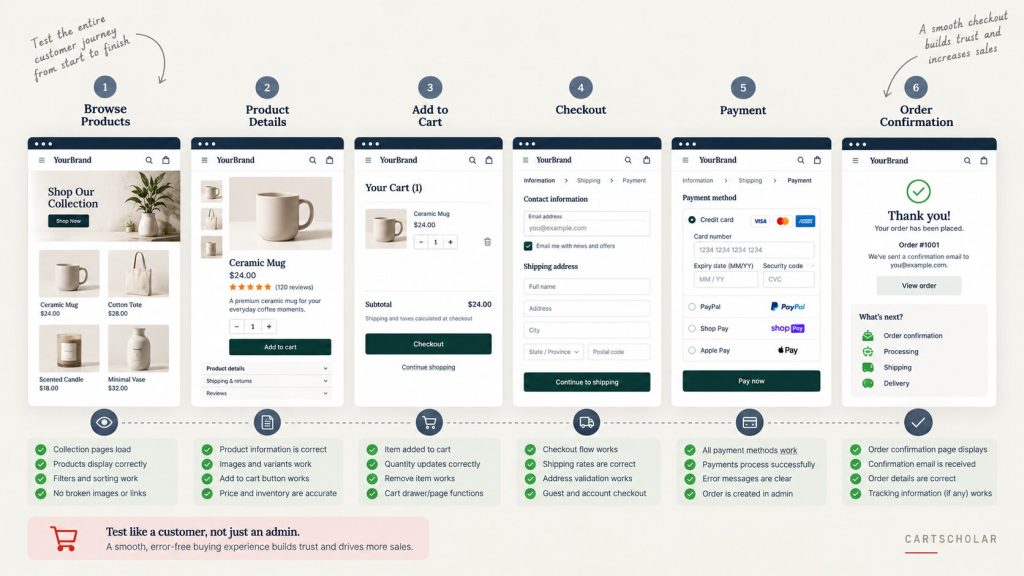
A store isn’t a set of pages. It’s a sequence — and the problems live in the joins between steps: cart to checkout, discount to total, payment to confirmation email. Testing pages individually misses all of them.
Walk the whole path: Product → Cart → Checkout → Payment → Order confirmation. Then walk it again differently.
Product
Select every variant combination on a few products and confirm price, image and availability update together. Check product information and pricing match what you intended to publish. Check that unavailable combinations can’t be ordered. Test the quantity selector at 0 and at a large number. Confirm add-to-cart gives clear feedback — a button that adds silently makes people click three times and order three units.
Cart
Change quantities and confirm totals recalculate. Remove an item, then remove the last item and check the empty cart state is presentable rather than a blank page. Confirm the cart survives navigating away and coming back.
Test discount codes through to the payment step, not just at the point of entry. Codes that apply in the cart and then vanish at checkout are a known category of problem, particularly where a theme, app or plugin handles discounts separately from the platform. Test a valid code, an expired one, a minimum-spend code both under and over the threshold, and a product-specific code on a cart that doesn’t qualify.
Checkout and payment
Complete a real transaction with a real card, then refund it. Test mode is useful during development, but it does not prove that live keys, live accounts and live webhooks are configured correctly. The final check belongs on the live payment setup.
- Check the customer information fields capture and validate properly
- Test each payment method separately — card, PayPal, Apple Pay, Klarna. They’re separate integrations and they fail separately
- Use a different billing and shipping address and confirm both land correctly on the order
- Check shipping rates for each zone, and tax calculation if you sell across regions
- Test guest checkout and account checkout if you offer both
- Complete a full checkout on a phone. Mobile is where most stores take most of their orders
After payment
Check the confirmation page shows the right order number and totals. Check the confirmation email arrives with correct branding and working links. Then confirm the order appears correctly in your admin with the right status, inventory decreases by the right amount, staff notifications reach the right person, and any connected system — accounting, fulfilment, email marketing — receives it.
Edge cases worth testing
One successful test order proves one path works. Customers won’t all take that path. Also run: a declined payment (the cart should survive and the message should be clear), an invalid discount code, an out-of-stock product, an item that sells out while it’s in the cart, an attempt to order more units than you hold, and an address that falls outside your shipping zones.
If you’re preparing a store on Shopify or WooCommerce, this section is where most of your testing time belongs. It’s the part of the site that takes money, and it has the most moving parts.
5. Search, Content & Media
Three areas that rarely get tested properly, because none of them look broken until someone goes looking for something specific.
Search and filtering
Search for a product you know exists, then something misspelled, then something that doesn’t exist — the no-results page should suggest a next step rather than dead-end. Apply filters individually and in combination, confirm sorting genuinely sorts, check category results return what they should, and check that filters survive pagination.
The failure to watch for is a filter returning wrong or empty results without saying so. Visitors assume you don’t stock the thing. They don’t assume your filter is broken. Test the mobile filter drawer too — it’s usually separate code and usually the buggier of the two.
Content
Content review gets skipped because it feels like someone else’s job. It’s where the embarrassing errors live. Check pricing everywhere it appears — product pages, comparison tables, PDFs, the FAQ. Check product information, contact details, opening hours, and the copyright year. Check spelling, headings, and button text that still says “Learn More” where it should say something specific.
Then search your content for “lorem”, “test”, “TODO” and your staging domain. Placeholder text hides inside tabs, accordions and modals that aren’t open by default.
Images and media
An image can look good and still be wrong for the site. Beyond broken and incorrect images, check file sizes: a 4MB camera photo looks identical to a properly sized 200KB version and loads far slower. Check image quality on logos and product shots for visible compression artefacts.
Also confirm alt text on meaningful images, thumbnails in blog listings and related products, video playback with muted autoplay, and that above-the-fold images aren’t lazy-loaded — that causes a visible flash of empty space on load.
6. Performance & Speed
Run your homepage, a category page and a product page through PageSpeed Insights — then look at the causes rather than the number. The usual culprits:
- Oversized images, generally the single biggest win
- Apps and plugins loading scripts on every page when they’re used on one
- Third-party scripts — chat widgets, review apps, heatmaps, multiple tracking tags
- Several weights of several font families when you use two
- Sliders and animation libraries on pages that don’t use them
- Missing caching or compression
Don’t chase a perfect score. A site scoring 78 that feels fast is in better shape than one tuned to 95 with a chat widget blocking interaction for two seconds. Core Web Vitals matter because they measure things visitors feel, and one is worth checking by hand: load a page and watch whether anything moves after it appears. Buttons that shift as someone taps them cause mis-taps — on a product page, that means the wrong variant in the cart.
A site that feels instant on a fast connection can feel sluggish on 4G in a car park, which is where a lot of local business traffic actually happens.
7. SEO & Analytics
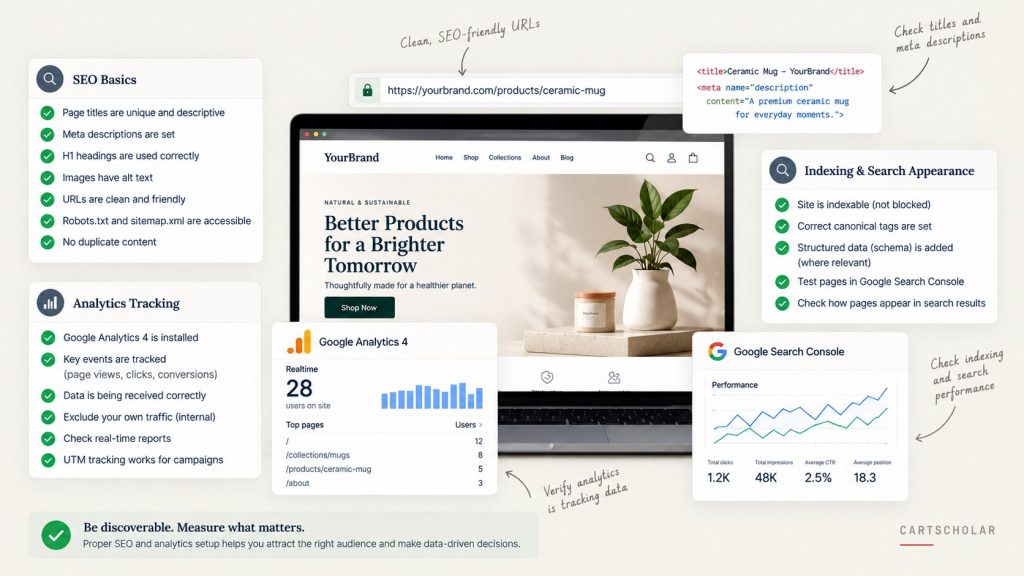
You don’t need a full audit before launch. You need to avoid the handful of mistakes that cause real damage.
The most important one: check the site is not set to noindex. Staging sites are routinely blocked from search engines during development, and that setting is supposed to come off at launch. When it doesn’t, the site is invisible in Google — and because everything else looks perfect, it can go unnoticed for weeks. In WordPress it’s the “Discourage search engines” checkbox under Settings → Reading, plus whatever your SEO plugin sets. In Shopify it’s usually the store password page or a theme-level meta tag. Check the setting and the page source of a live page.
Then: unique page titles and meta descriptions on your main pages, one H1 per page, canonical URLs pointing at the live domain rather than staging, a reachable XML sitemap, robots.txt not blocking anything important, and redirects mapped from your old URLs. Confirm the correct domain is used consistently — with or without www — across canonicals, sitemap and analytics.
Tracking
If tracking isn’t working on day one, that data is gone permanently. It can’t be backfilled. Verify rather than assume:
- Open the live site in a private window and check GA4 realtime. If you see yourself, it’s firing
- Confirm your GTM container is published, not just saved in preview mode — this one catches people out
- Check conversion events fire: form submissions, phone clicks, newsletter signups
- Place a test order and confirm the purchase event appears with the correct value and currency
- Check purchases aren’t double-counted, which happens when a platform integration and a manual tag are both installed
- Check Meta Pixel if you run paid campaigns, and that a consent banner actually prevents tracking when declined
8. Errors, Edge Cases & Technical Checks
Most testing checks the happy path. Real visitors find the other ones.
Visit a made-up URL and look at your 404 page. It should look like part of the site, explain what happened, and offer a way onward — search, navigation, popular pages. A blank server error page here is a lost visitor.
Then deliberately break things: submit a form with missing fields, submit it twice, run an empty search, apply an invalid discount code, trigger a declined payment, load a product that’s out of stock, visit a deleted product that might still be linked from Google, and check what a page does when an image fails to load.
The question to ask on each: if this happened to a customer with a card in their hand, could they recover and continue? That’s the standard. Errors are fine. Dead ends aren’t.
Final technical checks
- SSL valid and HTTPS enforced sitewide — check an inner page, not just the homepage — with no mixed-content warnings
- A full backup taken, and automated backups scheduled somewhere other than the same server
- Admin access reviewed. Remove accounts that no longer need it, change temporary passwords, enable two-factor
- Staging credentials and test content removed — password protection, dummy products, test orders, placeholder team members
- Debug settings off, so errors aren’t displayed publicly
- Integrations confirmed live — payment gateway, shipping rates, CRM, email marketing, all on production credentials rather than test ones
On WordPress and WooCommerce, delete unused plugins and themes rather than leaving them deactivated, and do your updates a few days before launch rather than the night before. Updating a plugin or theme shortly before going live is a genuine source of last-minute problems — the update itself is fine, but a conflict with your theme can break functionality that worked perfectly the day before. If you must update close to launch, retest the key journeys afterwards.
On Shopify, review staff permissions and remove agency or freelancer access that’s no longer needed. Uninstall apps you aren’t using — abandoned apps often leave scripts behind in the theme. Confirm the store password page is removed and the right theme version is published.
9. The Final Customer Journey
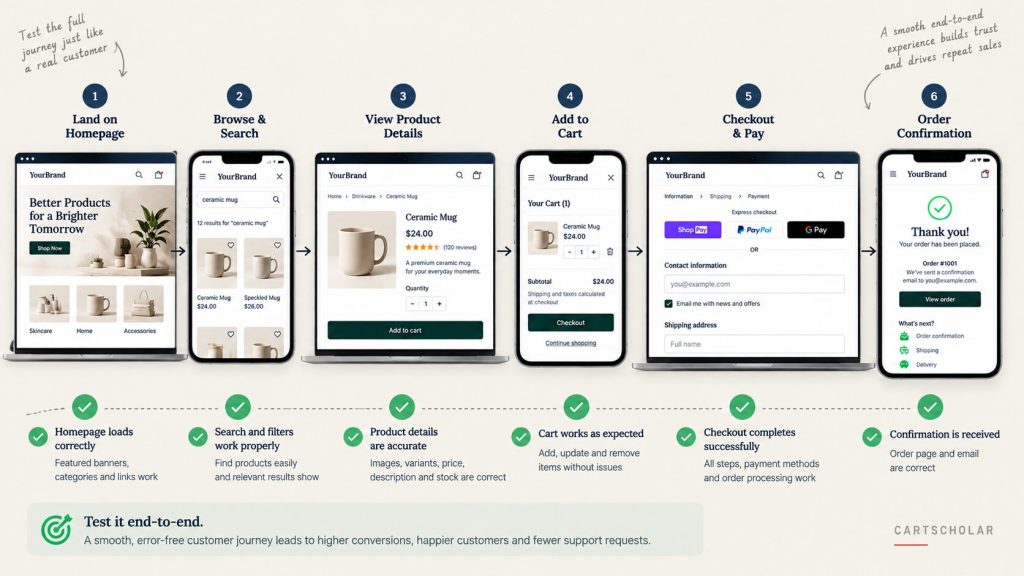
This is the most valuable hour of pre-launch testing, and the one people skip because it doesn’t feel technical.
Stop testing individual pages. Test the complete customer journey. You know where everything is, which is exactly why you’ve stopped seeing it — so pick a task and complete it the way a stranger would, on a phone, without touching the admin.
For an ecommerce website: landing page → product → cart → checkout → payment → confirmation. Find the product through navigation, then again through search. Choose a variant. Find the delivery and returns information, which is often the harder part. Apply a discount. Enter a shipping address different from the billing address. Pay, then read the confirmation email.
For a service website: landing page → find information → CTA → form → confirmation. Work out within a few seconds what the business does. Find the service you need, read enough to decide, find the price or an indication of it, click the call to action, submit the enquiry, then check the email and the auto-reply.
Do it once as a first-time visitor and once as a returning customer with an account.
Notice friction rather than bugs: where you had to think, what you went looking for and couldn’t find, which step took longer than it should. Those observations only surface when you move through the site with a goal instead of inspecting it page by page.
Better still, ask someone who hasn’t seen the site to do it while you watch without helping. Ten minutes of that tells you more about your navigation than any checklist.
10. Printable Website Launch Checklist
Download the checklist, save it for launch day, and work through each check as you go.
Display & devices
- ☐ Homepage and key pages tested on desktop and laptop
- ☐ Tested on a real iPhone and a real Android phone
- ☐ Tablet checked in portrait and landscape
- ☐ No horizontal scrolling on any key page
- ☐ Sticky header doesn’t cover buttons or content
- ☐ Popups and modals can be closed on mobile
- ☐ Sliders, galleries and pinch zoom work on touch
- ☐ Tap targets far enough apart to hit accurately
Navigation & links
- ☐ Main navigation and dropdowns tested
- ☐ Mobile menu opens, closes and navigates
- ☐ Footer links and legal pages checked
- ☐ Logo links to homepage
- ☐ All CTA buttons go where they should
- ☐ No 404s, broken anchors or staging URLs
- ☐ Breadcrumbs and pagination working
- ☐ Redirects from old URLs in place (rebuilds and migrations)
Forms
- ☐ Every form submitted with real data
- ☐ Emails received at the correct address
- ☐ Spam folder checked
- ☐ Required-field and invalid-email validation tested
- ☐ Success message and thank-you page confirmed
- ☐ Auto-replies read and checked
- ☐ Spam protection tested after enabling
- ☐ Forms usable on a phone
- ☐ CRM or inbox destination confirmed
Ecommerce
- ☐ Product information and pricing correct
- ☐ Variants, pricing and images update together
- ☐ Quantity selector and add to cart tested
- ☐ Cart updates, removal and empty-cart state checked
- ☐ Discount codes tested through to payment
- ☐ Invalid and expired codes show a clear error
- ☐ Shipping rates checked for every zone
- ☐ Tax calculation checked
- ☐ Live payment completed and refunded
- ☐ Each payment method tested separately
- ☐ Declined payment tested
- ☐ Different billing and shipping address tested
- ☐ Full checkout completed on mobile
- ☐ Confirmation page and email correct
- ☐ Order reaches admin with the right status
- ☐ Inventory and connected systems updated
- ☐ Out-of-stock behaviour tested
Search & content
- ☐ Search tested, including misspellings and no-result searches
- ☐ Filters and sorting tested, mobile included
- ☐ Filters survive pagination
- ☐ Category and product results correct
- ☐ Pricing verified everywhere it appears
- ☐ Contact details and opening hours correct
- ☐ Spelling, grammar and headings checked
- ☐ No lorem ipsum, placeholder text or developer notes
- ☐ Copyright year correct
- ☐ Legal pages present and linked
Images & media
- ☐ No broken or incorrect images
- ☐ Mobile cropping checked on banners and hero images
- ☐ Large image files optimised
- ☐ Image quality acceptable, no visible artefacts
- ☐ Alt text on meaningful images
- ☐ Thumbnails present in listings and related products
- ☐ Video playback and autoplay behaviour checked
Browsers
- ☐ Chrome, Safari, Firefox and Edge tested on desktop
- ☐ Mobile Safari and Android Chrome tested
- ☐ Layout holds without overlap in each
- ☐ Forms and checkout complete in each
Performance
- ☐ Key pages run through PageSpeed Insights
- ☐ Oversized images addressed
- ☐ Unused scripts, apps and fonts removed
- ☐ No noticeable layout shift as pages load
- ☐ Caching and compression enabled
- ☐ Site tested on mobile data, not just wifi
SEO
- ☐ Noindex removed and indexing confirmed
- ☐ Unique page titles and meta descriptions
- ☐ One H1 per page, sensible heading structure
- ☐ Canonical URLs point to the live domain
- ☐ Robots.txt and XML sitemap correct
- ☐ Redirects tested from old URLs
- ☐ Consistent domain (www or non-www) everywhere
- ☐ Open Graph preview checked
Analytics & tracking
- ☐ GA4 recording on the live domain
- ☐ GTM container published, not left in preview
- ☐ Form and phone-click conversions firing
- ☐ Ecommerce events firing through the funnel
- ☐ Purchase event firing with correct value and currency
- ☐ No double-counted purchases
- ☐ Meta Pixel checked (if running paid traffic)
- ☐ Consent banner behaviour verified
- ☐ Internal traffic filtered out
Errors & security
- ☐ 404 page tested and useful
- ☐ Failed form, invalid code and declined payment tested
- ☐ Empty search and missing product pages tested
- ☐ SSL valid, HTTPS enforced, no mixed content
- ☐ Admin accounts and permissions reviewed
- ☐ Staging password and test content removed
- ☐ Unused plugins, themes and apps removed
- ☐ Debug mode off
- ☐ Integrations running on production credentials
- ☐ Backup completed and scheduled backups confirmed
Final customer journey
- ☐ Full journey completed on desktop
- ☐ Full journey completed on mobile
- ☐ Journey completed as a first-time visitor and as a returning customer
- ☐ Someone unfamiliar with the site tried the main task
- ☐ Post-launch spot-check scheduled for 24 hours after go-live
That last item matters. Live environments differ from staging — real domain, real payment gateway, real DNS, real caching — and some problems only appear once the site is actually live.
Want to keep the checklist?
Download the CartScholar Website Testing Checklist
Don’t rely on memory on launch day. Download the printable checklist, save it for launch day, and work through each check as you go.
21 pages · Shopify · WordPress · WooCommerce
No email required.
When to bring someone in to test your website
Plenty of sites can be tested well by the person who runs them. The checklist above is enough for a straightforward brochure site or a small store.
Independent testing tends to pay for itself when the store is complex — many variants, subscriptions, multi-currency, several shipping zones — when checkout or payment has changed, when you’re migrating between platforms and URL structures and product data all change at once, when several integrations each have their own quiet failure modes, when you’re sending paid traffic to the site, or when missed enquiries and downtime are genuinely expensive.
There’s also a simpler reason. The people who built the site are the worst people to test it — not through carelessness, but because they know the intended path too well to stumble off it. Fresh eyes following the routes real customers take find things the build team can no longer see.
If you’d rather have someone independently test the site before it goes live, CartScholar provides website QA and testing for Shopify, WordPress and WooCommerce sites — pre-launch testing, post-migration checks, and fixing what the testing turns up.
Launching soon? Tell us what your launch involves and we’ll tell you what’s worth testing.